> ## Documentation Index
> Fetch the complete documentation index at: https://docs.binarly.io/llms.txt
> Use this file to discover all available pages before exploring further.
# Notifications
The core purpose of Notifications feature is to promptly inform the user about important updates and [Escalations](/resource-center/ems-escalations) in vulnerabilities. It helps to follow the vulnerability trends and check them against specific customer data to prioritize urgent trends of new critical or high-impact vulnerability appearance or track the trend when previously known vulnerabilities got exploited by malicious threat actors.
## Subscriptions
Users receive alerts specifically for escalations in vulnerabilities for the [Products](/user-guides/products) they're subscribed to. When a vulnerability associated with a product escalates in severity or new critical information becomes available, the users will be notified, enabling them to focus the attention where it's needed most.
### How to subscribe to a Product
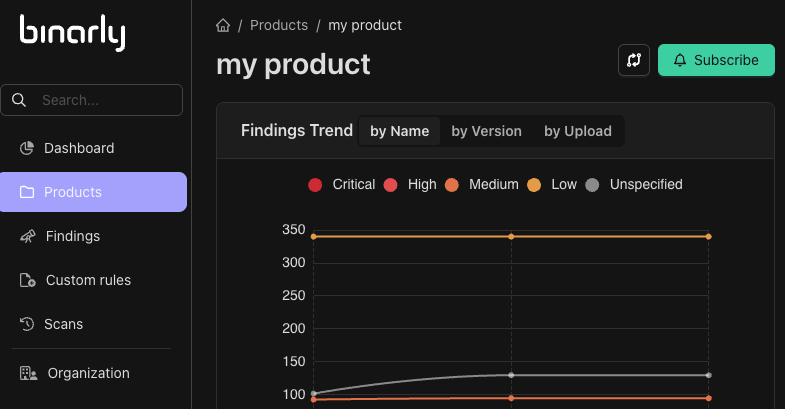
1. Locate the product you want to subscribe to:
* You can do it by browsing the list of products on the Products page.
2. Click "Subscribe" button.
 ## Types of Notifications
The following channels are available:
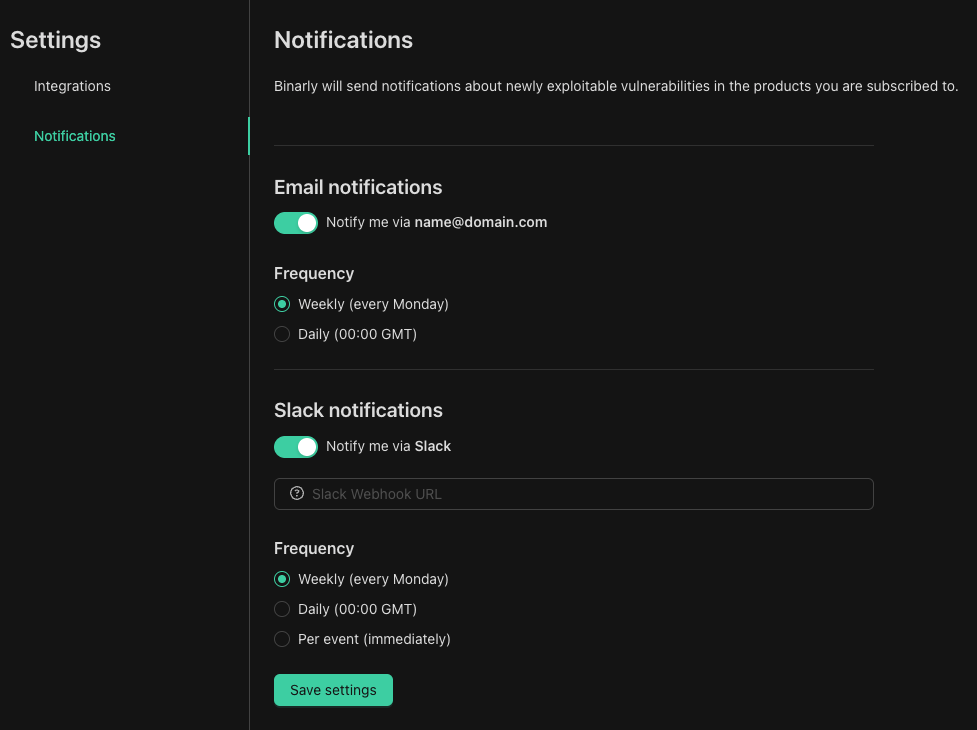
1. **Email Notifications**: Receive alerts directly in your inbox. You can choose to receive these alerts on a **daily** or **weekly** basis, providing a summary of relevant vulnerability [Escalations](/resource-center/ems-escalations). Emails will be sent to the **address configured in the user account**.
2. **Slack Notifications**: Slack notifications support per-event (immediate) alerts, meaning you are notified as soon as an escalation occurs for a product you are subscribed to. We utilize [Slack incoming webhook URLs](https://api.slack.com/incoming-webhooks) to deliver these notifications directly to your designated channels.
### Configure Notification Settings
1. Access Notification Settings
* You can do it by navigating to "Settings" page behind the user icon.
2. Click "Save Settings" button.
## Types of Notifications
The following channels are available:
1. **Email Notifications**: Receive alerts directly in your inbox. You can choose to receive these alerts on a **daily** or **weekly** basis, providing a summary of relevant vulnerability [Escalations](/resource-center/ems-escalations). Emails will be sent to the **address configured in the user account**.
2. **Slack Notifications**: Slack notifications support per-event (immediate) alerts, meaning you are notified as soon as an escalation occurs for a product you are subscribed to. We utilize [Slack incoming webhook URLs](https://api.slack.com/incoming-webhooks) to deliver these notifications directly to your designated channels.
### Configure Notification Settings
1. Access Notification Settings
* You can do it by navigating to "Settings" page behind the user icon.
2. Click "Save Settings" button.