> ## Documentation Index
> Fetch the complete documentation index at: https://docs.binarly.io/llms.txt
> Use this file to discover all available pages before exploring further.
# CVSS Vector Filtering
> Filter the Findings Grid by CVSS v3 vector elements to focus on specific attack characteristics and prioritize remediation.
## Overview
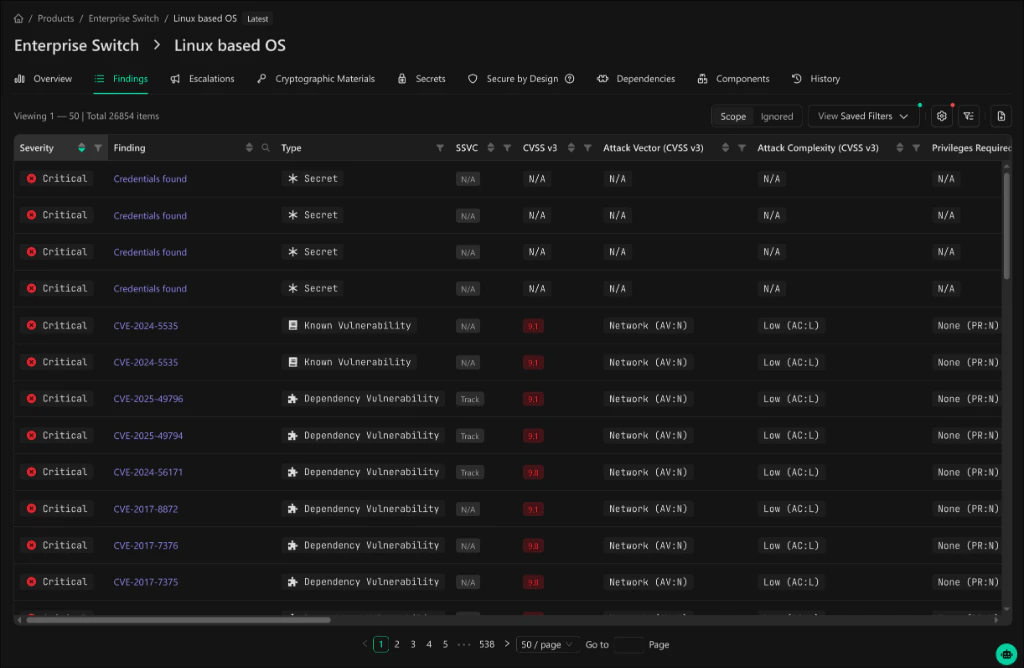
The Findings Grid supports filtering by all CVSS v3 vector elements, allowing you to focus on findings with specific attack characteristics. This helps prioritize vulnerabilities based on how they can be exploited.
 ## Available CVSS Vector Filters
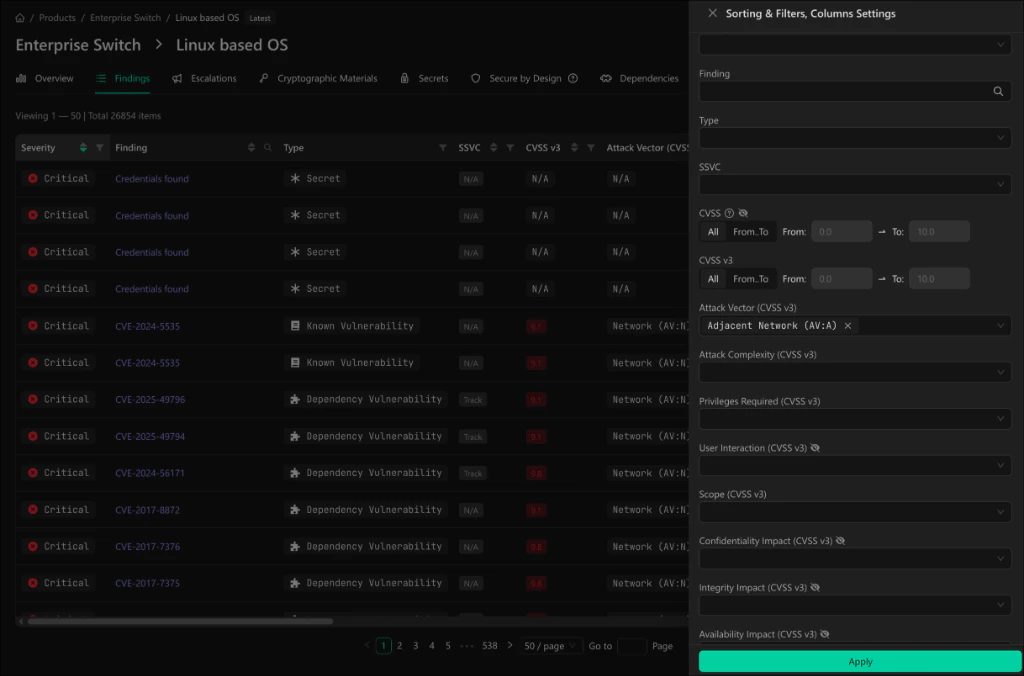
Access all CVSS filters from the **Sorting & Filters, Columns Settings** panel by clicking the filter icon in the grid header.
## Available CVSS Vector Filters
Access all CVSS filters from the **Sorting & Filters, Columns Settings** panel by clicking the filter icon in the grid header.
 ### Vector Elements
| Filter | Values | Description |
| ------------------------------------ | ---------------------------------- | ---------------------------------------------------------------------------- |
| **CVSS** *(legacy)* | Range 0.0 - 10.0 | Overall CVSS score. Hidden by default, can be re-enabled in column settings. |
| **CVSS v3** | Range 0.0 - 10.0 | CVSS v3 base score |
| **Attack Vector (CVSS v3)** | Network, Adjacent, Local, Physical | How the vulnerability can be exploited |
| **Attack Complexity (CVSS v3)** | Low, High | Conditions beyond attacker control that must exist |
| **Privileges Required (CVSS v3)** | None, Low, High | Level of privileges an attacker must possess |
| **User Interaction (CVSS v3)** | None, Required | Whether a user must participate |
| **Scope (CVSS v3)** | Unchanged, Changed | Whether impact extends beyond the vulnerable component |
| **Confidentiality Impact (CVSS v3)** | None, Low, High | Impact on information confidentiality |
| **Integrity Impact (CVSS v3)** | None, Low, High | Impact on information integrity |
| **Availability Impact (CVSS v3)** | None, Low, High | Impact on system availability |
## Using CVSS Filters
1. Click the **filter/settings icon** in the Findings grid header
2. Expand the **Sorting & Filters, Columns Settings** panel
3. Select values for one or more CVSS vector elements
4. Click **Apply** to filter the results
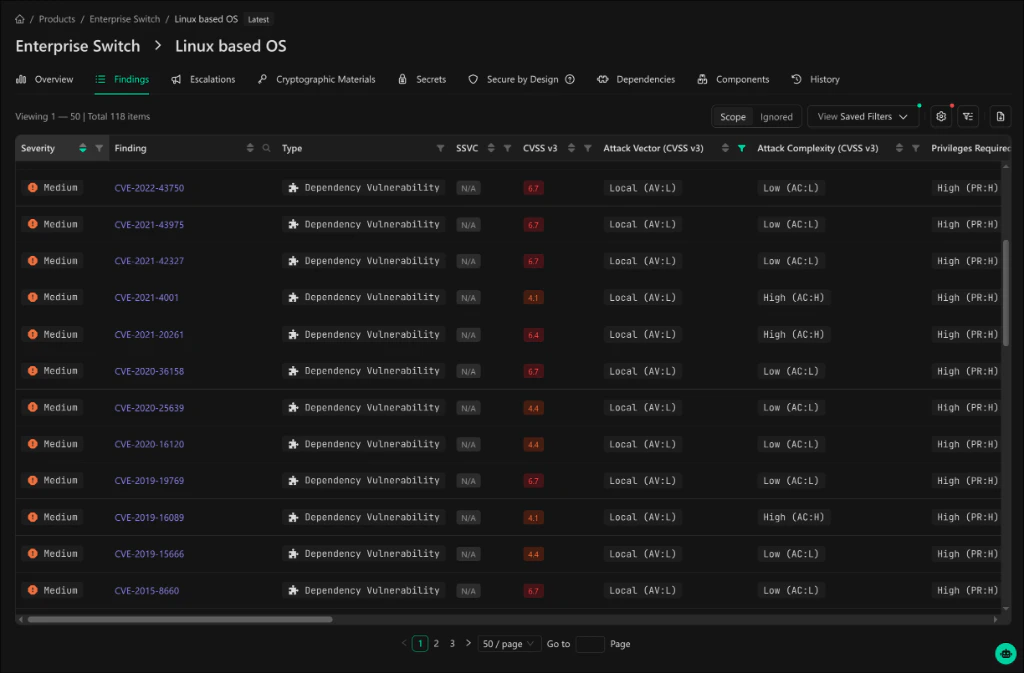
### Example: High-Risk Network Vulnerabilities
To find critical network-exploitable vulnerabilities:
1. Set **Attack Vector (CVSS v3)** to `Network (AV:N)`
2. Set **Privileges Required (CVSS v3)** to `None (PR:N)`
3. Click **Apply**
The results show only findings matching your criteria:
### Vector Elements
| Filter | Values | Description |
| ------------------------------------ | ---------------------------------- | ---------------------------------------------------------------------------- |
| **CVSS** *(legacy)* | Range 0.0 - 10.0 | Overall CVSS score. Hidden by default, can be re-enabled in column settings. |
| **CVSS v3** | Range 0.0 - 10.0 | CVSS v3 base score |
| **Attack Vector (CVSS v3)** | Network, Adjacent, Local, Physical | How the vulnerability can be exploited |
| **Attack Complexity (CVSS v3)** | Low, High | Conditions beyond attacker control that must exist |
| **Privileges Required (CVSS v3)** | None, Low, High | Level of privileges an attacker must possess |
| **User Interaction (CVSS v3)** | None, Required | Whether a user must participate |
| **Scope (CVSS v3)** | Unchanged, Changed | Whether impact extends beyond the vulnerable component |
| **Confidentiality Impact (CVSS v3)** | None, Low, High | Impact on information confidentiality |
| **Integrity Impact (CVSS v3)** | None, Low, High | Impact on information integrity |
| **Availability Impact (CVSS v3)** | None, Low, High | Impact on system availability |
## Using CVSS Filters
1. Click the **filter/settings icon** in the Findings grid header
2. Expand the **Sorting & Filters, Columns Settings** panel
3. Select values for one or more CVSS vector elements
4. Click **Apply** to filter the results
### Example: High-Risk Network Vulnerabilities
To find critical network-exploitable vulnerabilities:
1. Set **Attack Vector (CVSS v3)** to `Network (AV:N)`
2. Set **Privileges Required (CVSS v3)** to `None (PR:N)`
3. Click **Apply**
The results show only findings matching your criteria:
 ## Column Display
Customize which CVSS columns appear in the grid via the **Display columns** panel.
## Column Display
Customize which CVSS columns appear in the grid via the **Display columns** panel.
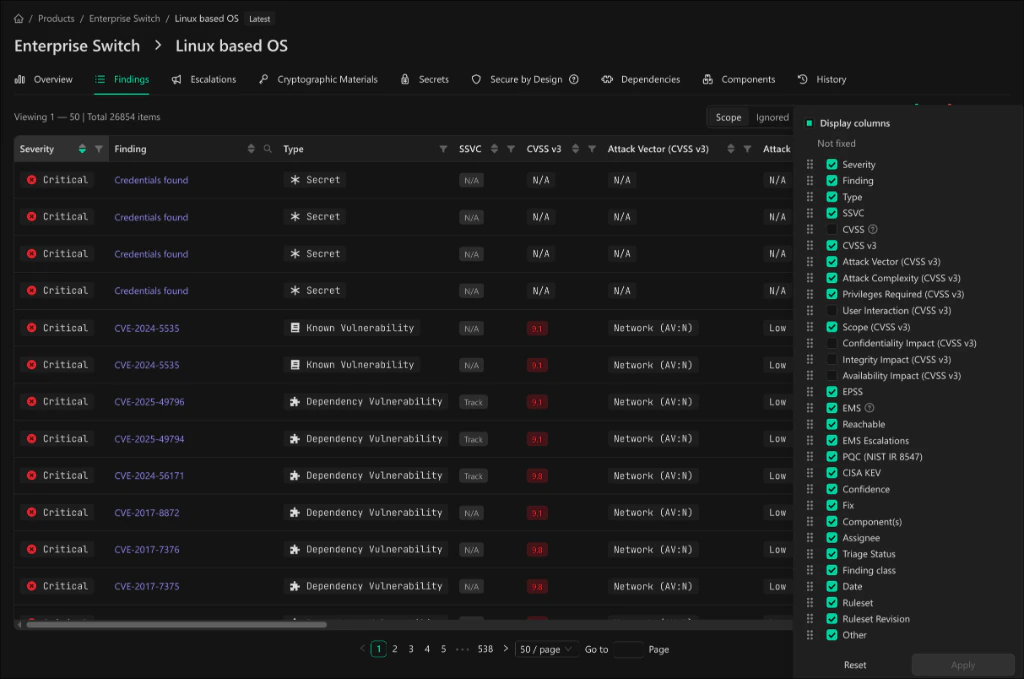 The grid displays CVSS values in a compact format:
| Column | Display Format | Example |
| ---------------------- | -------------- | ---------------------------------- |
| Attack Vector | `Value (AV:X)` | `Network (AV:N)`, `Local (AV:L)` |
| Attack Complexity | `Value (AC:X)` | `Low (AC:L)`, `High (AC:H)` |
| Privileges Required | `Value (PR:X)` | `None (PR:N)`, `High (PR:H)` |
| User Interaction | `Value (UI:X)` | `None (UI:N)`, `Required (UI:R)` |
| Scope | `Value (S:X)` | `Unchanged (S:U)`, `Changed (S:C)` |
| Confidentiality Impact | `Value (C:X)` | `None (C:N)`, `High (C:H)` |
| Integrity Impact | `Value (I:X)` | `None (I:N)`, `High (I:H)` |
| Availability Impact | `Value (A:X)` | `None (A:N)`, `High (A:H)` |
## Integration with Saved Views
CVSS vector filters integrate seamlessly with [Saved Views](/user-guides/important-findings/saved-views):
* Save filter configurations for quick access
* Include CVSS columns in your default view
* Share filtered views across the organization
Use the **View Saved Filters** dropdown to save or load filter presets.
## Related
* [Findings Scope](/user-guides/image-scans/findings-scope) - Control which finding types appear in the grid per product
* [Saved Views](/user-guides/important-findings/saved-views) - Save and share filter configurations
* [Finding Types & Classes](/resource-center/finding-types) - Reference for all finding types and classes
The grid displays CVSS values in a compact format:
| Column | Display Format | Example |
| ---------------------- | -------------- | ---------------------------------- |
| Attack Vector | `Value (AV:X)` | `Network (AV:N)`, `Local (AV:L)` |
| Attack Complexity | `Value (AC:X)` | `Low (AC:L)`, `High (AC:H)` |
| Privileges Required | `Value (PR:X)` | `None (PR:N)`, `High (PR:H)` |
| User Interaction | `Value (UI:X)` | `None (UI:N)`, `Required (UI:R)` |
| Scope | `Value (S:X)` | `Unchanged (S:U)`, `Changed (S:C)` |
| Confidentiality Impact | `Value (C:X)` | `None (C:N)`, `High (C:H)` |
| Integrity Impact | `Value (I:X)` | `None (I:N)`, `High (I:H)` |
| Availability Impact | `Value (A:X)` | `None (A:N)`, `High (A:H)` |
## Integration with Saved Views
CVSS vector filters integrate seamlessly with [Saved Views](/user-guides/important-findings/saved-views):
* Save filter configurations for quick access
* Include CVSS columns in your default view
* Share filtered views across the organization
Use the **View Saved Filters** dropdown to save or load filter presets.
## Related
* [Findings Scope](/user-guides/image-scans/findings-scope) - Control which finding types appear in the grid per product
* [Saved Views](/user-guides/important-findings/saved-views) - Save and share filter configurations
* [Finding Types & Classes](/resource-center/finding-types) - Reference for all finding types and classes