> ## Documentation Index
> Fetch the complete documentation index at: https://docs.binarly.io/llms.txt
> Use this file to discover all available pages before exploring further.
# Finding Variants
> Finding Variants provides an ability to use vulnerability information from alternative sources for finding prioritization.
## Overview
By default, finding attributes — severity, CVSS scores, references, and classifications, etc. — are compiled by Binarly from several sources. For known vulnerabilities, additional data from external advisory sources is also available as **Variants**. For a full list of supported sources, see [Vulnerability Data Sources](/resource-center/vdb-sources).
Finding Variants lets you configure a prioritized list of alternative sources per product. When a finding has a variant from one of those sources, this variant gets applied, which means that its attributes override the corresponding attributes of the finding. This affects the findings grid, sorting, filtering, dashboard charts, and exports.
A common use case is applying ecosystem-reported severities that differ from the original finding severity. For example, the OpenSSL project rates CVE-2024-5535 as **Low**, while the NVD severity might be **Critical**. Configuring `openssl` as a source will surface the ecosystem's own assessment for all affected findings in the product.
## How It Works
When a source list is configured for a product:
* Each finding is checked for a variant from the **first matching source** in the priority list.
* If a matching variant exists, its available attributes override the corresponding finding attributes. Attributes not present in the variant remain unchanged.
* If the source list is changed or a source is removed, affected findings are recalculated automatically — either falling back to a lower-priority source or reverting to the original finding attributes.
## Configuring Finding Variants
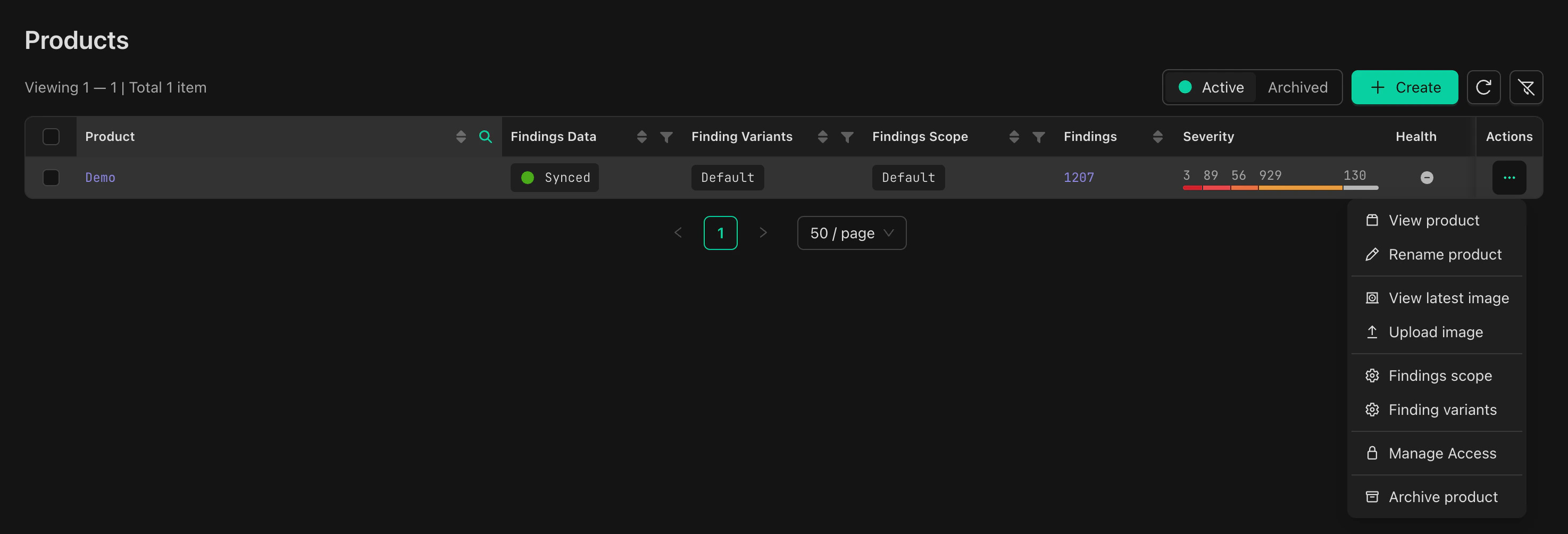
Finding Variants is configured from the Products page.
1. Navigate to the three-dot menu in the **Actions** column on the chosen Product's row
2. Click **Finding Variants**
 ### Adding and Ordering Sources
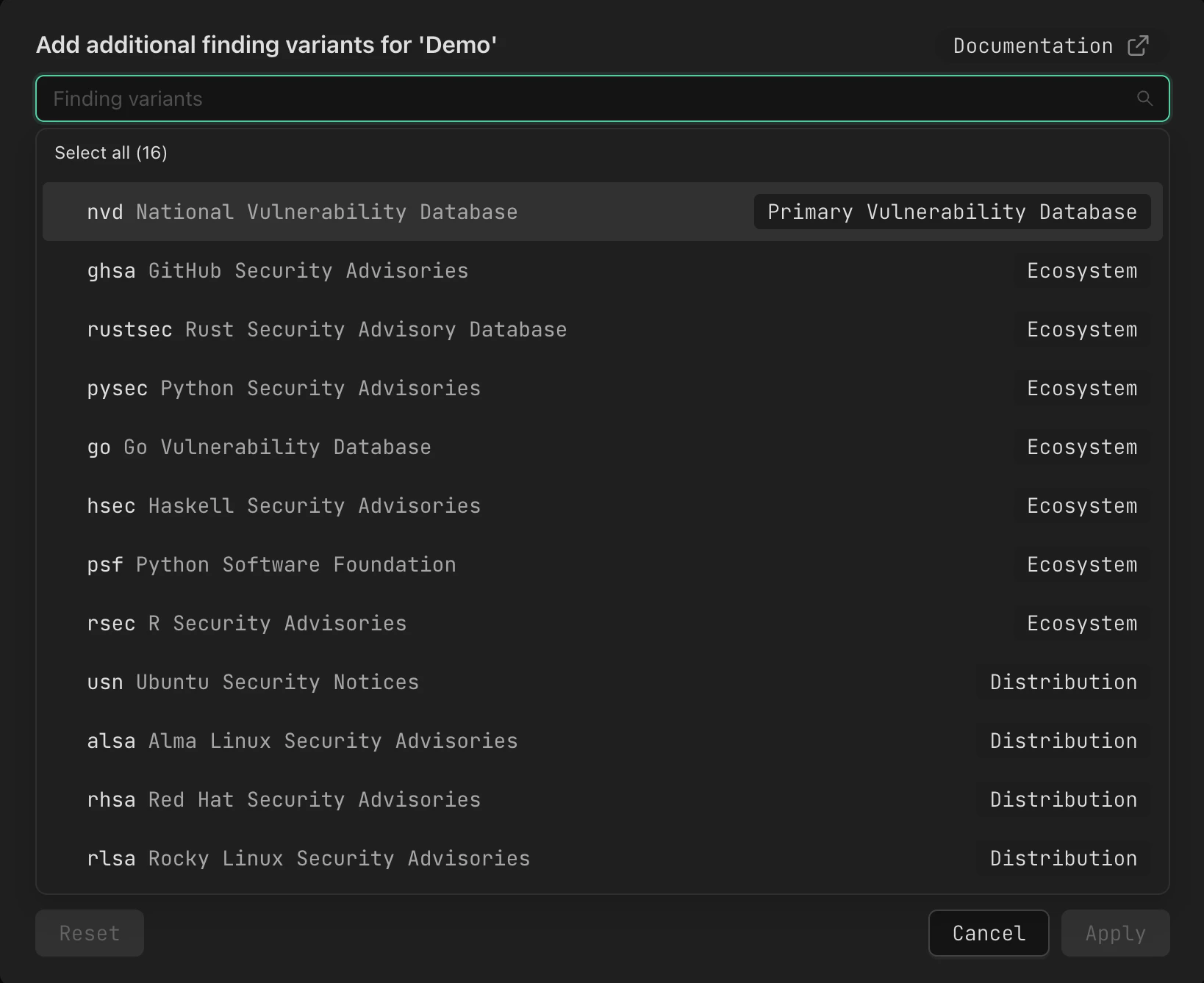
1. In the **Finding Variants** drawer, add sources from the predefined list
2. Drag sources to set their priority order — sources higher in the list take precedence
3. Click **Apply**
### Adding and Ordering Sources
1. In the **Finding Variants** drawer, add sources from the predefined list
2. Drag sources to set their priority order — sources higher in the list take precedence
3. Click **Apply**
 > **Note:** At most one variant is applied per finding — from the first source in the priority list for which a matching variant exists. If no configured source matches any of a finding's available variants, the original finding attributes are used.
### Sync Status
After applying changes, all findings in the product are recalculated asynchronously. The product's row in the Products grid will show a sync indicator:
* **Updating...** - Variant application policy is being applied.
> **Note:** At most one variant is applied per finding — from the first source in the priority list for which a matching variant exists. If no configured source matches any of a finding's available variants, the original finding attributes are used.
### Sync Status
After applying changes, all findings in the product are recalculated asynchronously. The product's row in the Products grid will show a sync indicator:
* **Updating...** - Variant application policy is being applied.
 * **Synced** - Variants are fully applied.
 ## Viewing Variants on Finding Details
The **Variants** tab on the Finding Details page shows all available variants for a finding, including their individual fields and source attribution.
## Viewing Variants on Finding Details
The **Variants** tab on the Finding Details page shows all available variants for a finding, including their individual fields and source attribution.
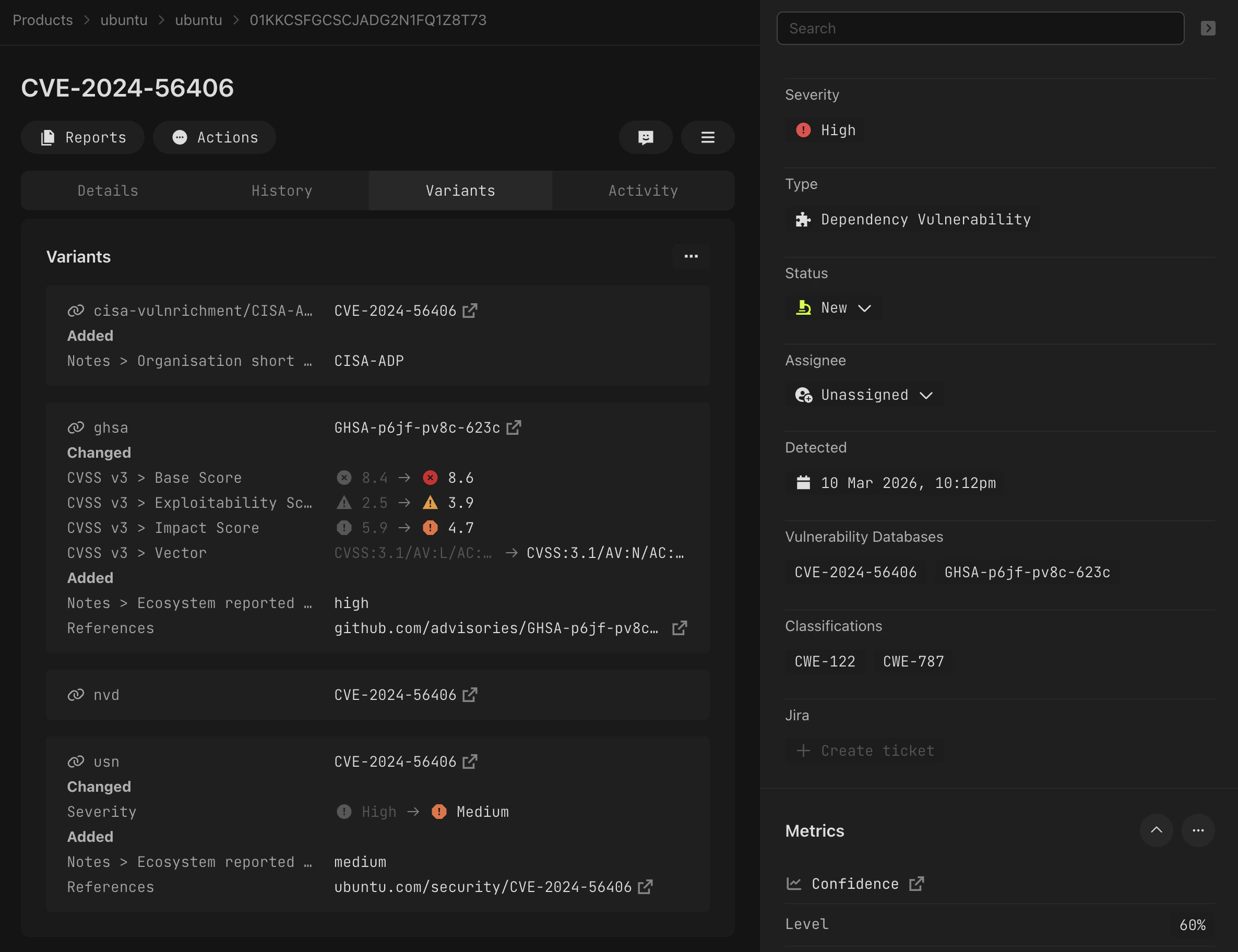 The currently applied variant is marked as **applied**. If no source is configured or no matching variant exists, the original finding attributes are used and no applied marker is shown.
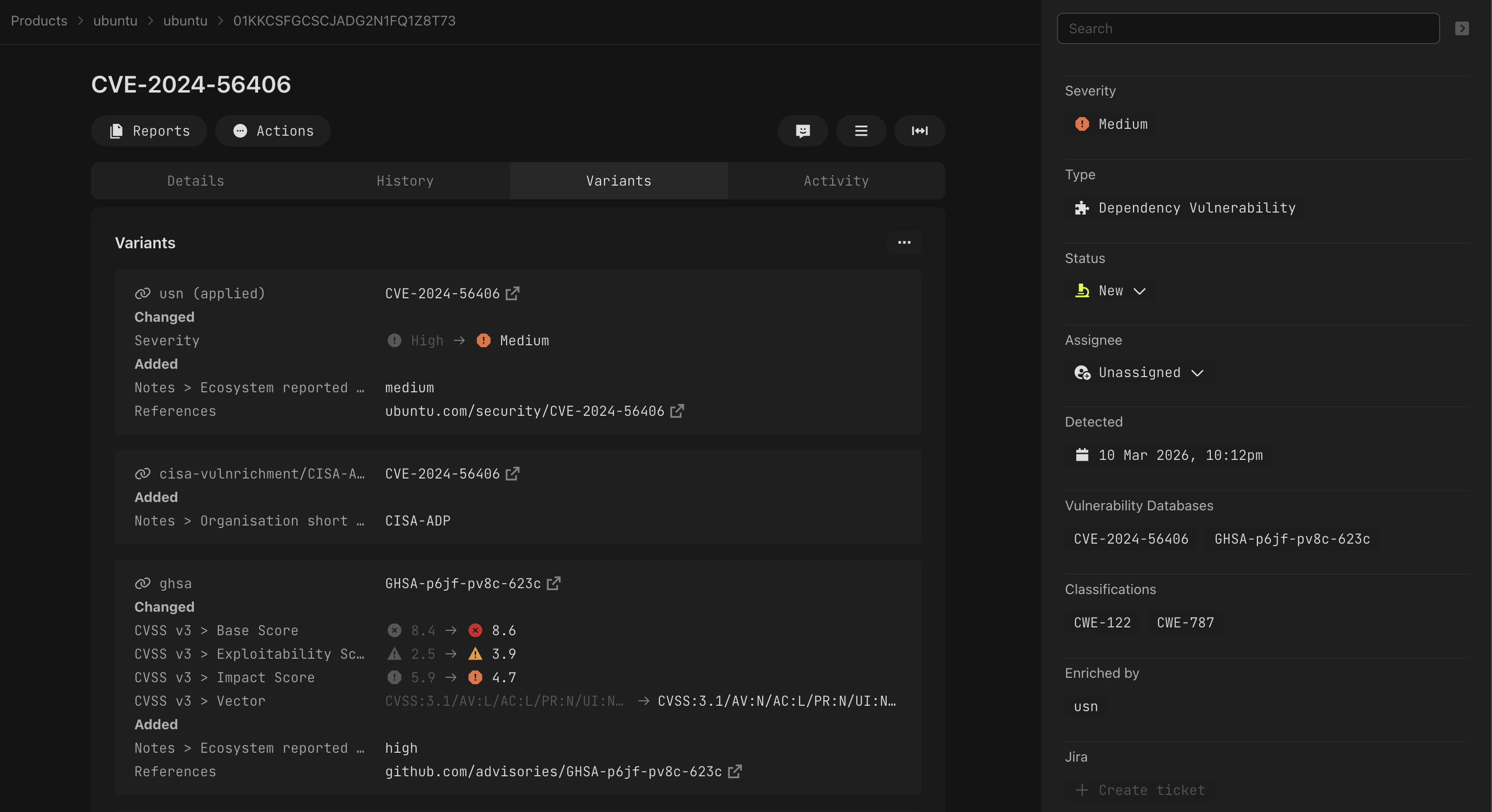 > **Note:** Variants listed under `{source}/{identifier}` keys (e.g. `cisa-vulnrichment/CISA-ADP`) are shown on this tab for reference but are not eligible for override configuration.
## Related
* [Vulnerability Data Sources](/resource-center/vdb-sources) — Reference for all supported vulnerability data sources
> **Note:** Variants listed under `{source}/{identifier}` keys (e.g. `cisa-vulnrichment/CISA-ADP`) are shown on this tab for reference but are not eligible for override configuration.
## Related
* [Vulnerability Data Sources](/resource-center/vdb-sources) — Reference for all supported vulnerability data sources