> ## Documentation Index
> Fetch the complete documentation index at: https://docs.binarly.io/llms.txt
> Use this file to discover all available pages before exploring further.
# Findings Scope
> Findings Scope limits reported findings for a product by disabling certain finding types not relevant to the product threat model. This helps with noise reduction and fine-tuning of reports and dashboard content.
## Overview
Findings Scope allows you to customize which finding types are visible for each product. Disabled finding types are hidden from:
* Dashboard charts and statistics
* Findings grid counts
* Exports and reports
For a complete reference of finding types and their associated classes, see [Finding Types & Classes](/resource-center/finding-types).
## Configuring Findings Scope
Findings Scope can be configured from the Products page or from an individual Product page.
### From Products Page
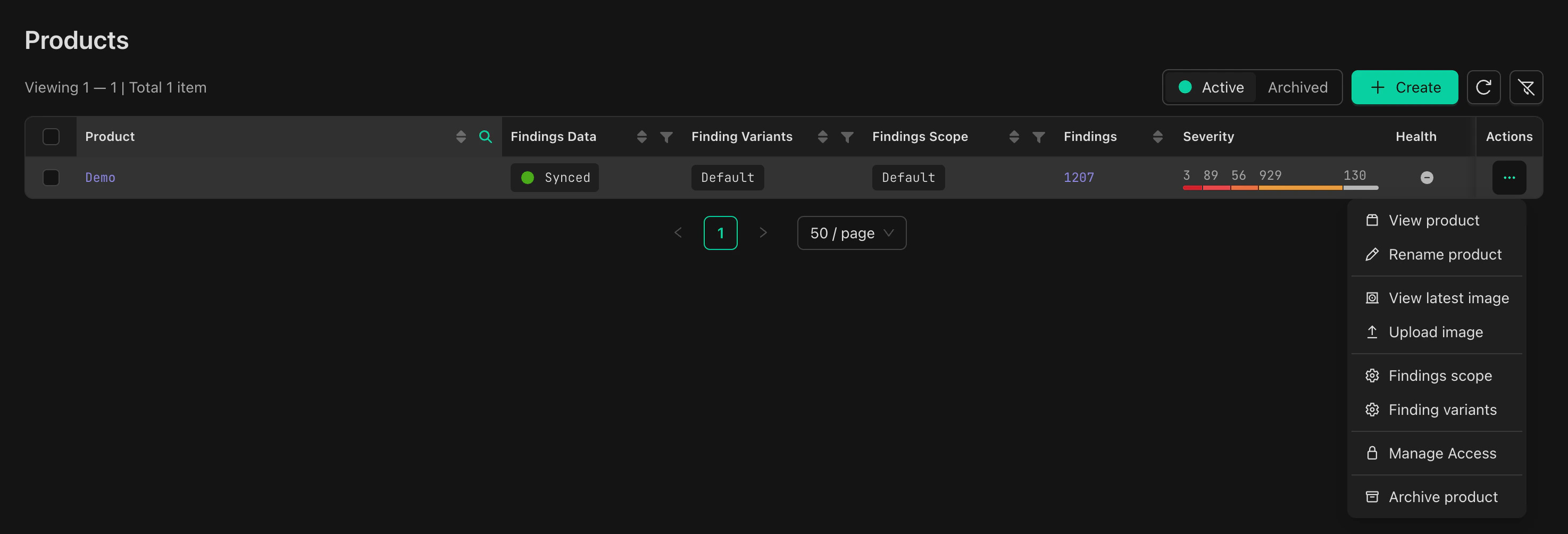
1. Navigate to the three-dot menu in the **Actions** column on the chosen Product's row
2. Click **Findings Scope**
 ### From Product Page
Click the **Findings Scope** button in the product header.
### From Product Page
Click the **Findings Scope** button in the product header.
 ### Configuring Finding Types
1. In the Findings Scope drawer, unselect the Finding Types you want to hide
2. Click **Apply**
### Configuring Finding Types
1. In the Findings Scope drawer, unselect the Finding Types you want to hide
2. Click **Apply**
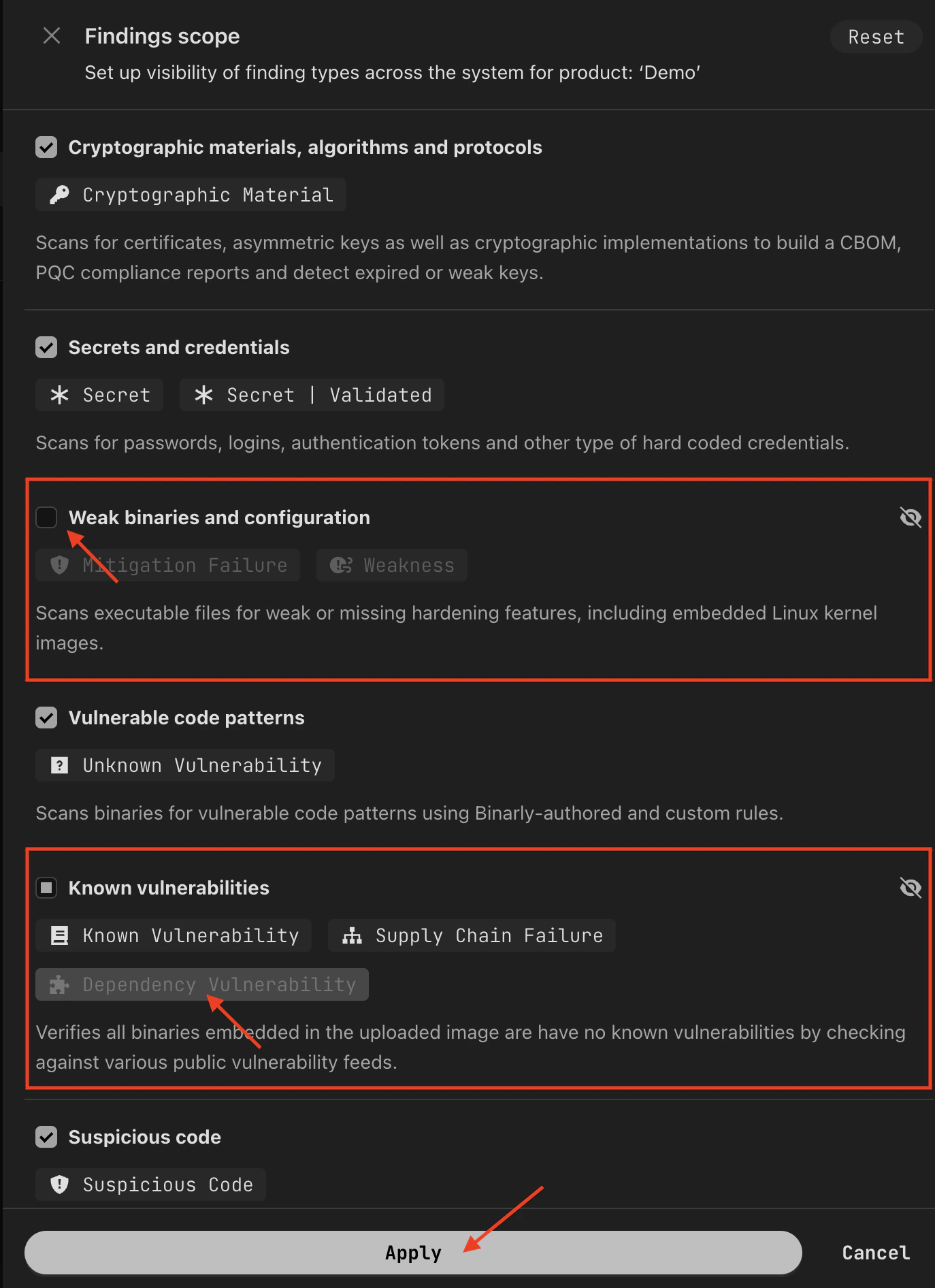 The drawer organizes finding types into categories:
* **Cryptographic materials, algorithms and protocols** - Crypto assets, certificates, keys
* **Secrets and credentials** - Embedded credentials
* **Weak binaries and configuration** - Missing mitigations, weaknesses
* **Vulnerable code patterns** - Zero-day vulnerabilities
* **Known vulnerabilities** - CVEs, supply chain issues, dependency vulnerabilities
* **Suspicious code** - Potential tampering or obfuscation
* **Malicious code** - Confirmed malicious behavior and known threats
### Sync Status
After applying changes, wait for the scope to sync:
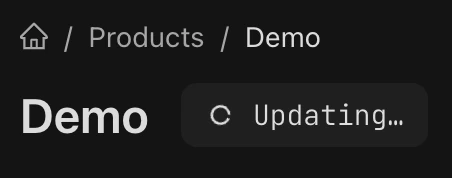
* **Updating...** - Scope is being applied. Wait and refresh the page.
The drawer organizes finding types into categories:
* **Cryptographic materials, algorithms and protocols** - Crypto assets, certificates, keys
* **Secrets and credentials** - Embedded credentials
* **Weak binaries and configuration** - Missing mitigations, weaknesses
* **Vulnerable code patterns** - Zero-day vulnerabilities
* **Known vulnerabilities** - CVEs, supply chain issues, dependency vulnerabilities
* **Suspicious code** - Potential tampering or obfuscation
* **Malicious code** - Confirmed malicious behavior and known threats
### Sync Status
After applying changes, wait for the scope to sync:
* **Updating...** - Scope is being applied. Wait and refresh the page.
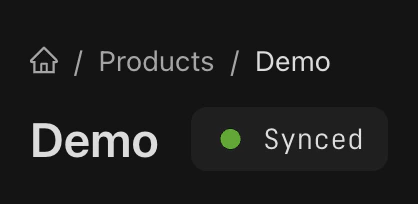
 * **Synced** - Scope is fully applied.
 ## Browsing Ignored Findings
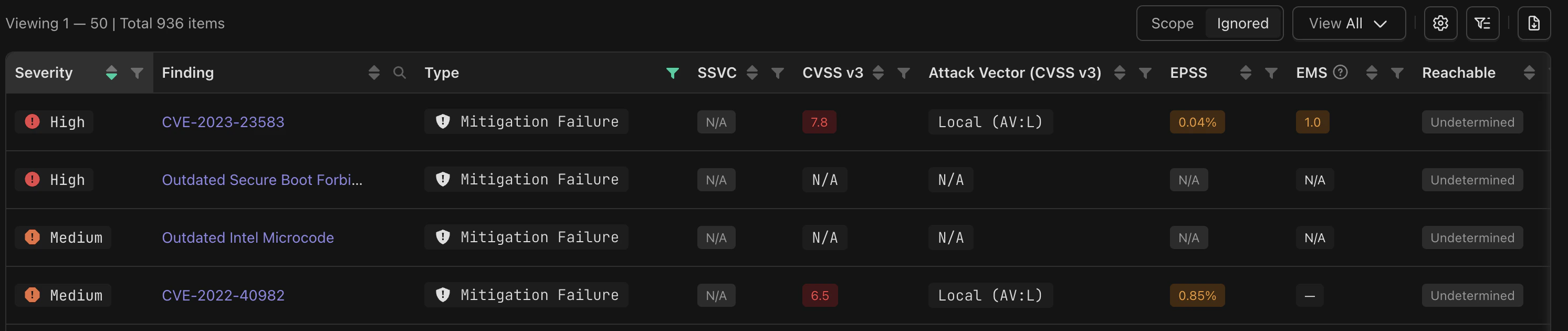
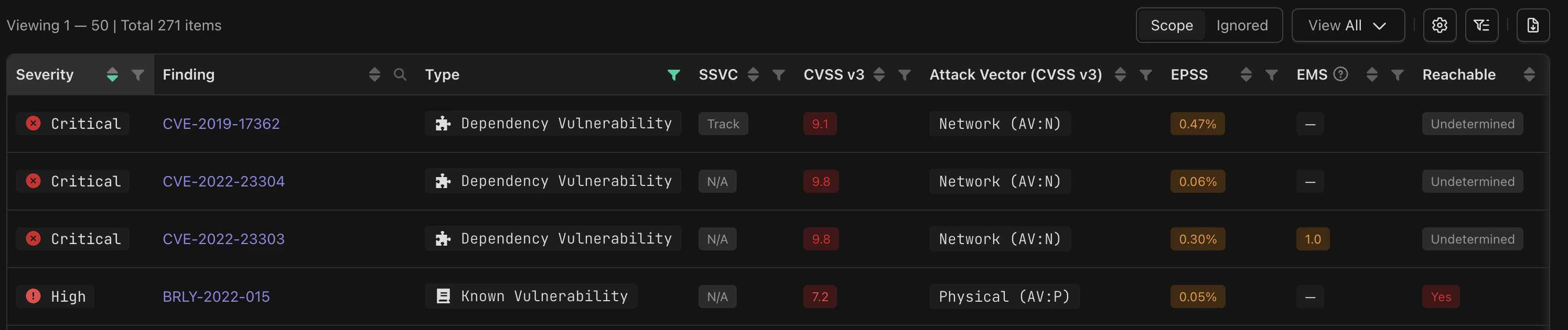
You can view findings hidden by scope using the **Scope/Ignored** toggle in the findings grid header.
### View Ignored Findings
Click **Ignored** to see findings excluded by scope settings:
## Browsing Ignored Findings
You can view findings hidden by scope using the **Scope/Ignored** toggle in the findings grid header.
### View Ignored Findings
Click **Ignored** to see findings excluded by scope settings:
 ### Return to Scoped View
Click **Scope** to return to the filtered view:
### Return to Scoped View
Click **Scope** to return to the filtered view:
 > **Note:** Toggling between Scope and Ignored views preserves your other filter and sort settings.
## Related
* [CVSS Vector Filtering](/user-guides/image-scans/cvss-vector-filtering) - Filter the findings grid by individual CVSS v3 vector elements
* [Finding Types & Classes](/resource-center/finding-types) - Complete reference for all finding types and their associated classes
> **Note:** Toggling between Scope and Ignored views preserves your other filter and sort settings.
## Related
* [CVSS Vector Filtering](/user-guides/image-scans/cvss-vector-filtering) - Filter the findings grid by individual CVSS v3 vector elements
* [Finding Types & Classes](/resource-center/finding-types) - Complete reference for all finding types and their associated classes