Overview

This repository contains the installer for Binarly On-Prem. The installer uses Helmfile and various Helm charts to set up all necessary components.

Prerequisites

  • Access to a Kubernetes cluster (at least with version 1.29.0 or newer).
  • kubectl configured to interact with your cluster.
  • helm installed, if using Helm for deployment. v3.17.0 or newer is required.
  • A Linux, macOS, or Windows with WSL enabled.
  • Access credentials for Binarly’s Artifact Registry (provided with the installer).
  • Secrets and values set up as described on the Configuration page.

Deployment

Helm

  1. Set up Secrets as described in the Configuration/Binarly Secrets section.
  2. Create a values-overlay.yaml file with the necessary configuration. This is detailed in the Configuration/Values section.
  3. Read the Third Party Charts section and ensure any required third-party components are installed.
To deploy the Binarly Transparency Platform, use the following command to create the CRDs:
helm template binarly-transparency-platform \
  oci://<Your provided registry>/charts/binarly-transparency-platform:<The required version> \
  -f values-overlay.yaml | \
  yq e 'select(.kind == "CustomResourceDefinition")' - | kubectl apply -f -
then deploy the application:
helm upgrade --install binarly-transparency-platform \
  oci://<Your provided registry>/charts/binarly-transparency-platform:<The required version> \
  -f values-overlay.yaml --namespace {Your Namespace} \
  --skip-crds \
  --take-ownership \
  --timeout 15m \
  --create-namespace
CRD management in Helm leaves a lot to be desired, and some CRDs may not be installed properly, at an older version, or not at all. If you encounter issues, the CRDs can be applied one by one using kubectl, or a helm install of the individual charts.

ArgoCD

If you are using ArgoCD, you can create an Application manifest to deploy this chart. Here is an example, with sample values:
apiVersion: argoproj.io/v1alpha1
kind: Application
metadata:
  name: binarly-transparency-platform
  namespace: argocd
spec:
  project: default
  source:
    helm:
      values: |
        global:
          argoCD: true # Important to disable helm-specific hooks
          storageClassName: standard
          ingressClassName: tailscale
          basedomain: binarly.io
          dashboard:
            hostname: "dashboard"
          keycloak:
            hostname: "keycloak"
          bucketsConfig:
            publicEndpoint: https://minio-api.binarly.io # The public endpoint for MinIO, if using the built-in data storage option
        keycloak:
          ingress:
            hostname: "keycloak.binarly.io" # Unfortunately this has to be set twice
        scan-workflow: # Specific configuration for the scanner jobs
          workflow:
            storageClassName: "premium"
            nodeSelector:
              workload: tools
            tolerations:
              - effect: NoSchedule
                key: workload
                operator: Equal
                value: tools
    repoURL: {The Repository URL}
    targetRevision: {The required version}
    chart: binarly-transparency-platform
  destination:
    server: https://kubernetes.default.svc
    namespace: binarly-transparency-platform
  syncPolicy:
    automated:
      prune: true
      selfHeal: true
    syncOptions:
      - ServerSideApply=true
      - RespectIgnoreDifferences=true
      - CreateNamespace=true
  ignoreDifferences:
    - jsonPointers:
        - /data/password
        - /data/admin-password
      kind: Secret

FluxCD

If you are using FluxCD, you can create a HelmRelease manifest to deploy this chart. Here is an example with sample values:
# -- More information on HelmRepository and HelmRelease can be found at https://fluxcd.io/flux/components/helm/helmreleases/
apiVersion: source.toolkit.fluxcd.io/v1
kind: HelmRepository
metadata:
  name: binarly-transparency-platform
  namespace: binarly-transparency-platform
spec:
  type: "oci"
  url: {The Repository URL}
  interval: 10m
  secretRef:
    name: binarly-registry

---
apiVersion: helm.toolkit.fluxcd.io/v2
kind: HelmRelease
metadata:
  name: binarly-transparency-platform
  namespace: binarly-transparency-platform
spec:
  interval: 5m
  chart:
    spec:
      chart: binarly-transparency-platform
      version: {The required version}
      sourceRef:
        kind: HelmRepository
        name: binarly-transparency-platform
        namespace: binarly-transparency-platform
  values:
    global:
      registryHost: "registry.binarly.io"
      storageClassName: standard
      ingressClassName: tailscale
      basedomain: binarly.io
      dashboard:
        hostname: "dashboard"
      keycloak:
        hostname: "keycloak"
      bucketsConfig:
        publicEndpoint: https://minio-api.binarly.io # The public endpoint for MinIO, if using the built-in data storage option
    keycloak:
      ingress:
        hostname: "keycloak.binarly.io" # Unfortunately this has to be set twice
    scan-workflow: # Specific configuration for the scanner jobs
      workflow:
        storageClassName: "premium"
        nodeSelector:
          workload: tools
        tolerations:
          - effect: NoSchedule
            key: workload
            operator: Equal
            value: tools
  install:
    createNamespace: true
  upgrade:
    remediation:
      retries: 3

Post-Deployment

User Setup

After installation is complete, a user needs to be set up on Keycloak before accessing the platform. To do this, follow these steps:
  1. Access the Keycloak Admin Console at the configured keycloak hostname (e.g., https://keycloak.binarly.cloud).
  2. Get the admin password using the following command:
    kubectl get secret -n {{ The installation namespace }} keycloak -o jsonpath='{.data.admin-password}' | base64 --decode
    
  3. Log in to the Keycloak Admin Console using the username admin and the password obtained in the previous step.
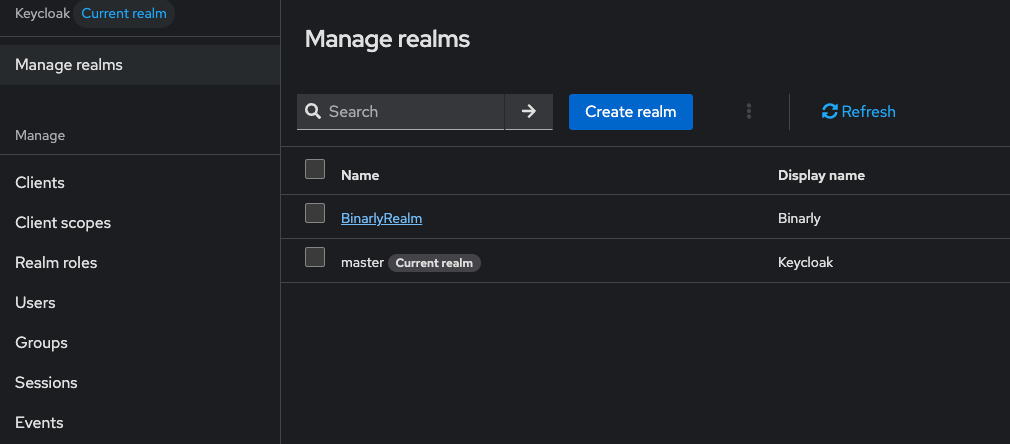
  4. Click “Manage Realm”, then “BinarlyRealm”. Manage Realm BinarlyRealm
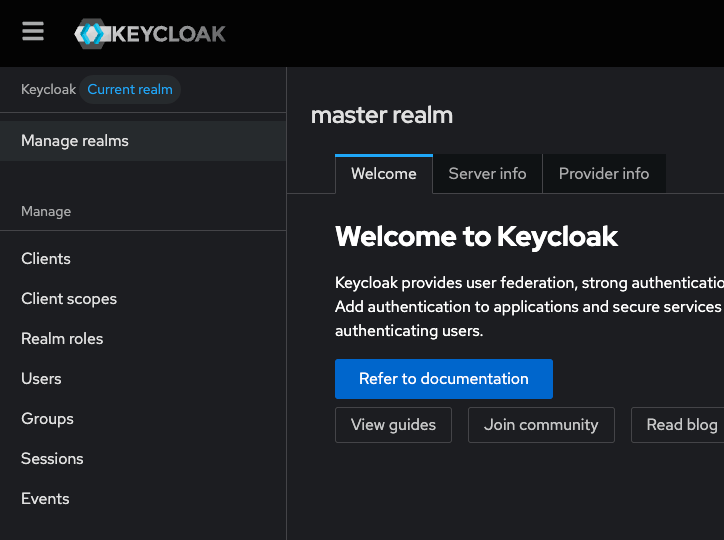
  5. Click “Users” in the left sidebar, then click “Add User”.
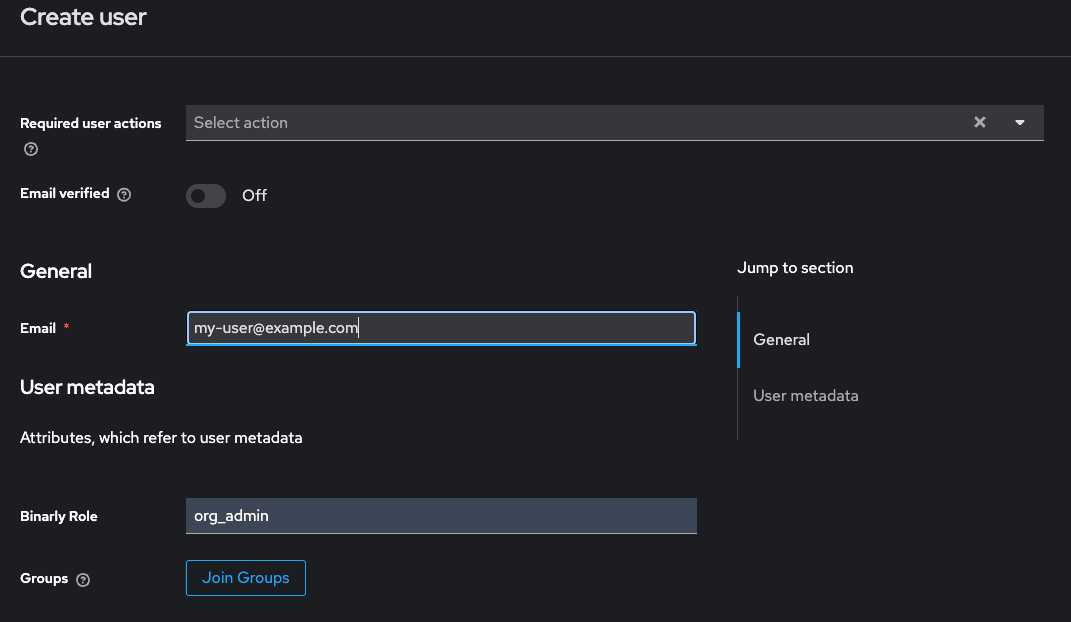
  6. Fill in the user’s email and add org_admin in the Binarly Role field, and save. New User
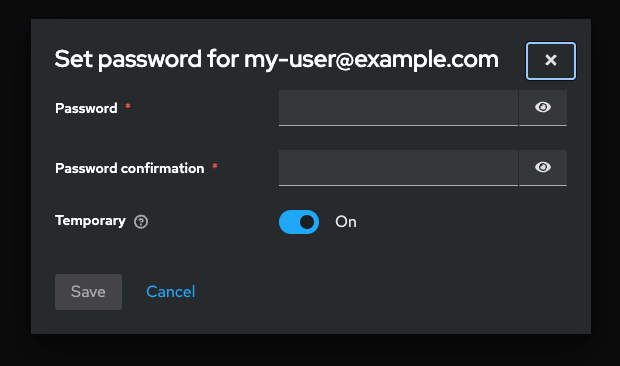
  7. Navigate to the “Credentials” tab and set a password for the user. Create Credentials Set Credentials
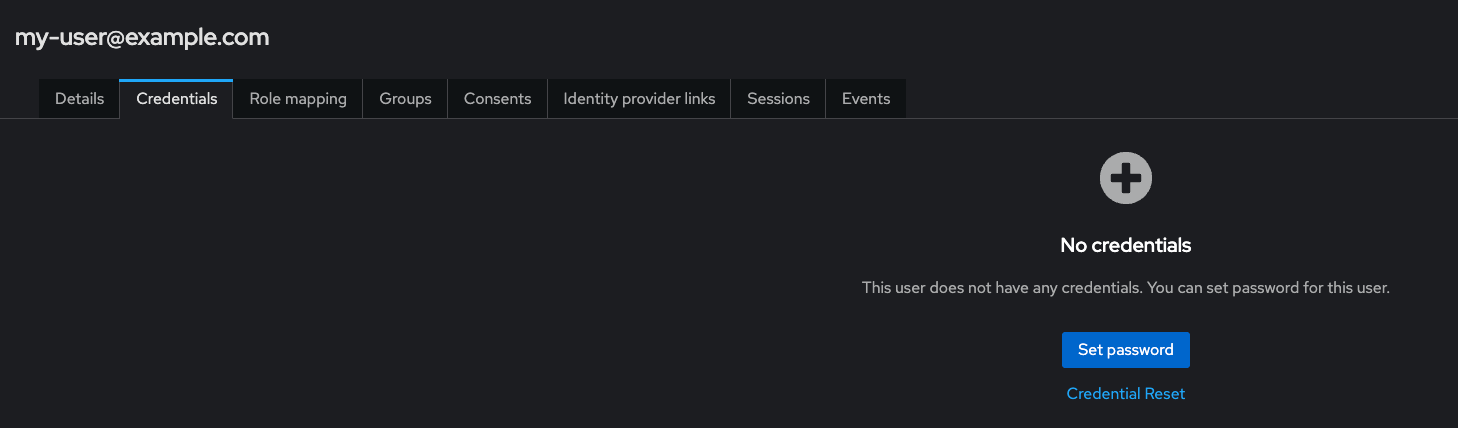
  8. Log in to the Binarly Transparency Platform at the configured dashboard hostname (e.g., https://dashboard.binarly.cloud) using the email and password set in the previous step.
Please do not remove the binarly-admin user. This user is used by the application for user management and cannot be used to access the platform.

Running a Scan

After logging in, you can refer to the user guides for how to use the platform.