What are Products?
Products serve as containers designed to represent development, security review, analysis, research, or assessment efforts. This provides a logical grouping mechanism for images and container files analyzed by the platform. For example, a product line or device model would be ideal in a development life cycle scenario, e.g., Acme Power Server 1000. In an embedded Linux or container scenario, a specific version of an OS or set of components analyzed would ideally be a product, e.g., Mint22-WilmaBenefits of Using Products
- Streamlined Organization: Ensures that related images and findings are logically grouped for easier navigation and analysis.
- Improved Analysis and Reporting: Allows for focused vulnerability and security assessments tied to specific product lines, device models, or software versions.
- Scalable Management: Simplifies tracking and management of complex data sets across diverse projects or product categories.
Managing Products
Effective product management within the Binarly Transparency Platform relies on a logical and consistent naming convention. This ensures clarity and organization when creating and associating images with products.Creating New Products
New products can be created using the action menus located in the:-
Upper Right Corner:
- Provides an option to create a new product.
- Best for adding products without immediately associating an image.
-
Lower Left Corner:
- Offers the same product creation option.
- Additionally, prompts you to upload an image for analysis during the creation process as well as setting a version.
Naming Products
Product names are free-form fields, allowing flexibility in naming conventions. It is recommended to use logical and descriptive names that clearly identify the purpose or content of the product.Examples of Product Names:
-
Device-Specific Names:
- Acme Business Server 1500
- Router Firmware for Model Z100
-
File or Container Types:
- Web Services Docker
- Linux Kernel Firmware
-
Use Case Descriptions:
- Cloud Storage for Edge Device Updates
- IoT Firmware Updates for Manufacturing
Best Practices for Managing Products
- Establish a logical and consistent vocabulary for product names to enhance organization and searchability.
- Associate related images with their respective products to streamline analysis and reporting.
- Regularly review and update product names to reflect changes in development, analysis, or assessment efforts.
Creating a Product
The Binarly Transparency Platform provides flexible options for creating new products, allowing users to organize and manage images effectively. Products can be created directly or as part of the image upload process.Steps to Create a Product
-
Using the Action Menus:
-
Navigate to one of the action menus located in the:
- Upper Right Corner: Ideal for creating a product without uploading an image.
- Lower Left Corner: Offers the same product creation functionality but integrates image upload options.
- Enter the desired Product Name in the free-form field.
- Click Create to finalize the product.
-
Navigate to one of the action menus located in the:
-
Using the “Upload Image” Option:
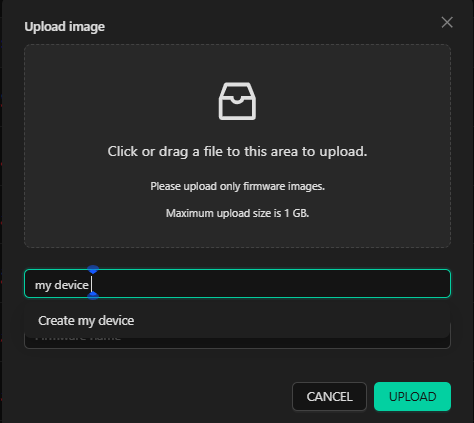
- Click the “Upload Image” button located in the lower left corner of the interface.
-
The Image Upload Dialog will appear, providing two options:
- Select an existing product name to associate the uploaded image.
-
Create a new product name:
- When prompted, select “Create (New Product Name)”.
- Enter the desired product name in the provided field.
- Complete the process by uploading the image.
Best Practices for Product Creation
- Choose logical and descriptive names that clearly identify the product’s purpose or associated images.
- Ensure product names align with your organization’s naming conventions for easier searchability and management.
- Use the “Upload Image” workflow when directly associating an image with a newly created product.
Products can be set up as placeholders without requiring immediate image uploads. Alternatively, you can create products dynamically when uploading specific images. There is no limit to the number of products that can be made. Products should be used as logical organizational units for related or similar images that require analysis. Product licensing may be tied to the number of products in specific scenarios, such as OEMs or firmware manufacturers. If you need clarification on your product licensing, please contact support at support@binarly.io or your account representative.
Archiving a Product
The Binarly Transparency Platform allows users to archive products to streamline the active grid view without permanently deleting data. Archiving helps manage the workspace by moving less relevant or inactive products out of the primary view.Archiving a Product
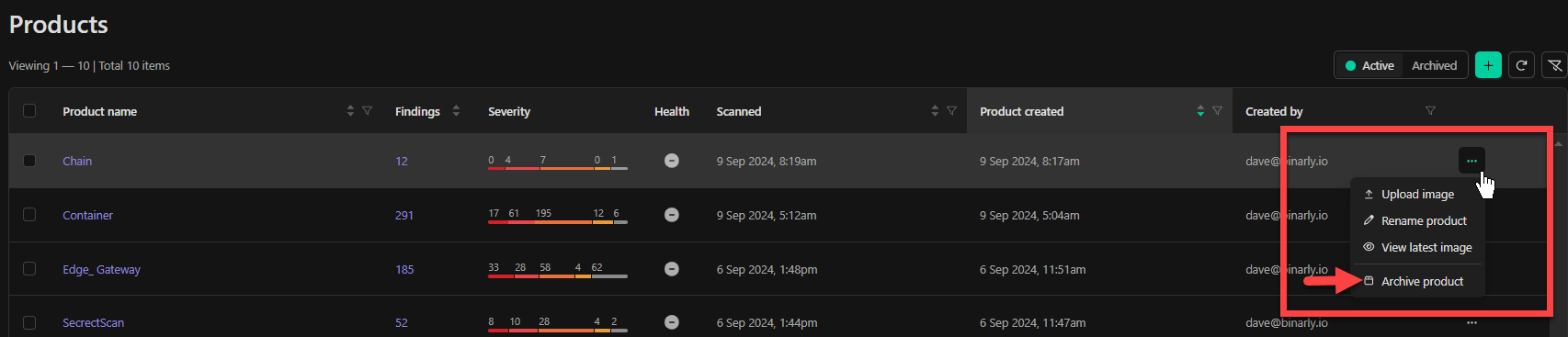
To archive a product:- Navigate to the three-dot menu located on the far right of the product’s row in the active grid view.
-
Select “Archive Product” from the dropdown menu.
- Archiving moves the product and its associated images to the archived view.
-
Additional options in the three-dot menu:
- Rename the product for better organization.
- Upload additional images to the product if needed before archiving.
Accessing Archived Products
-
Switch to the archived grid view:
- In the action menu at the upper right corner, select the archived filter grid option.
-
The archived grid view displays:
- Archived products and their associated details.
- Information such as who created and archived the product.
Unarchiving a Product
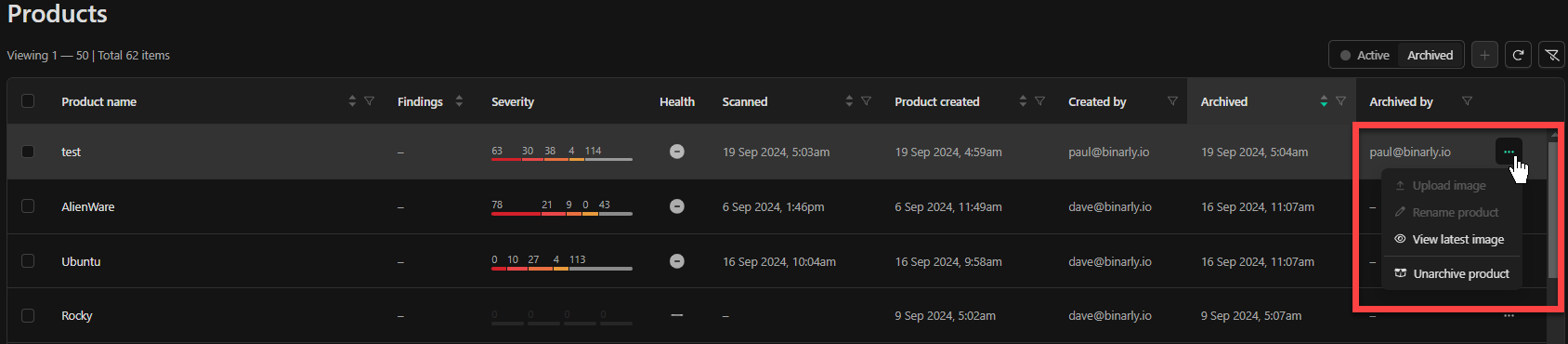
If you need to restore an archived product:- In the archived grid view, locate the product you wish to restore.
- Navigate to the three-dot menu on the far right of the grid.
- Select “Unarchive Product” to move the product and its data back to the active grid view.