

Where is it?
The widget can be found on the Dashboard and the Product Image Page. On the Dashboard it will show total findings per selected view across all Findings. If filtering the Dashboard by a product, it will filter findings to the first image found in that product.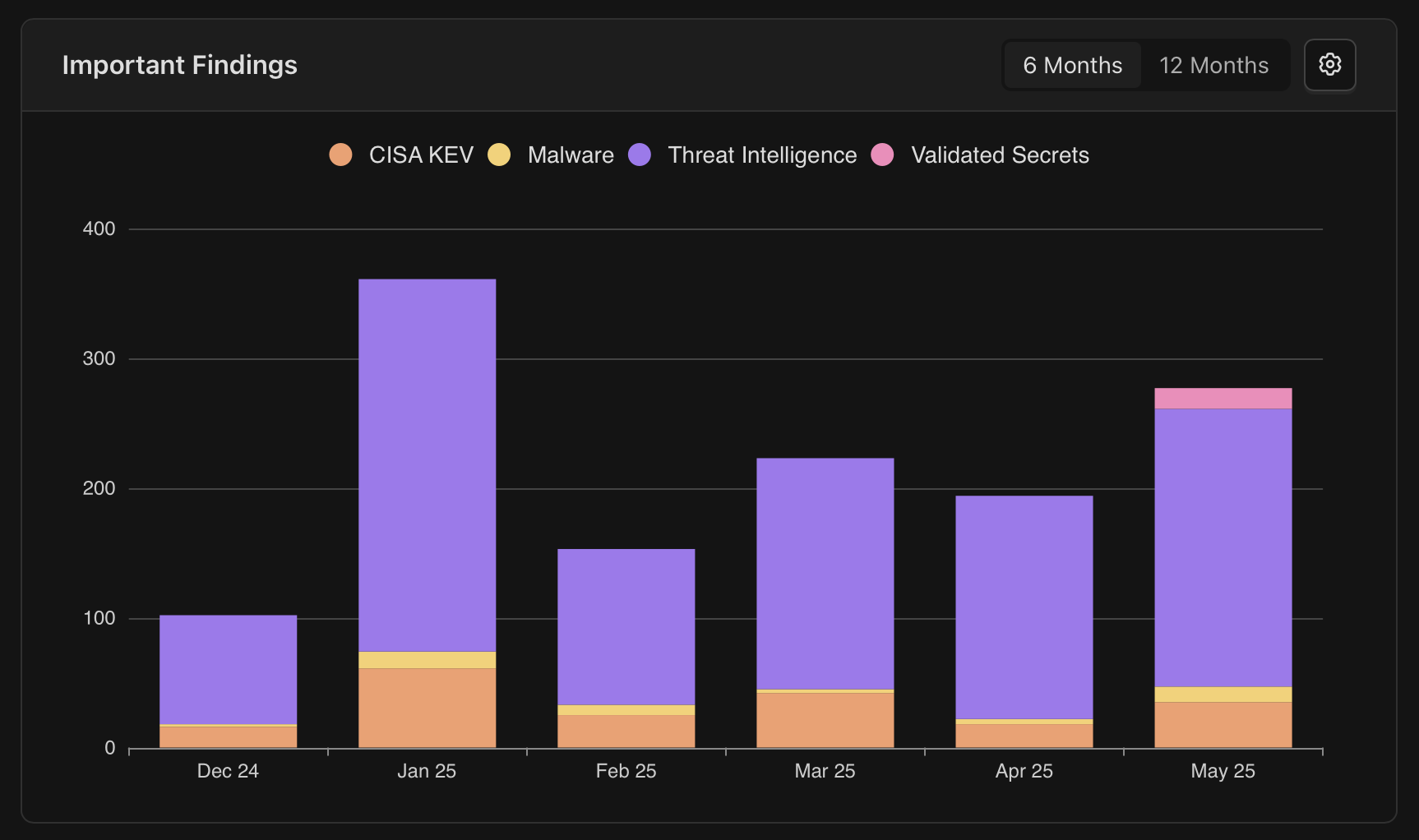
Controls

6 months or 12 months?
The widget by default displays a count of any findings of selected views in the last 6 months.- There is a toggle on the widget to choose between 6 and 12 months
Selecting custom views
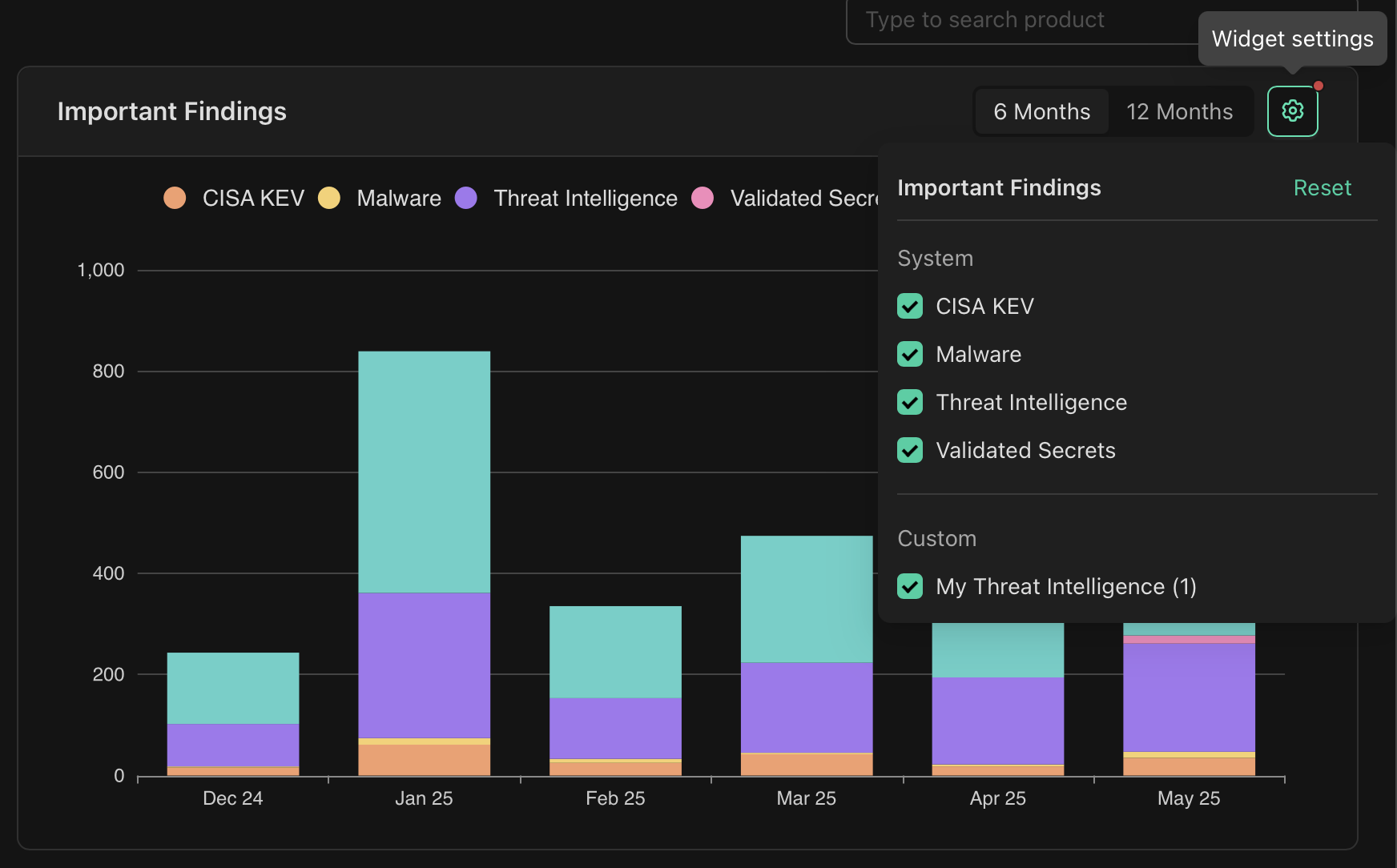
There is a gear button which opens the settings for which views should display- You can select up to 6 views
- If you have setup custom views, these will be displayed here
- Custom views display in context (Global Findings views on Dashboard, Product Image views when Dashboard filtered by product or on product image)
- You can always use the “Reset” option to return the widget to its default state. A red dot will appear on the gear when the views can be reset
Excluding views temporarily
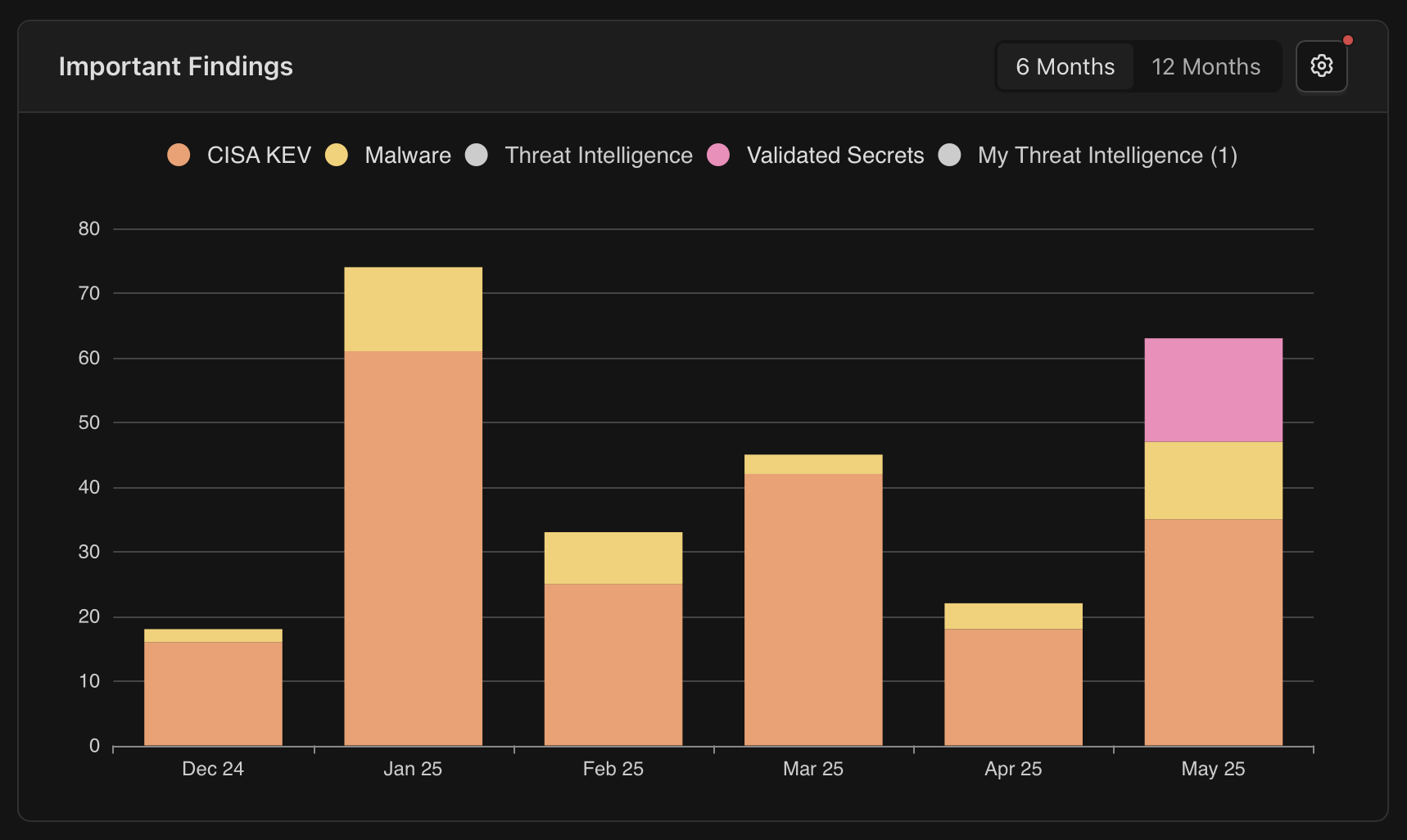
Selected views will display in the widget Legend- Selecting the view name will disable / enable it displaying in the chart, below the System View “Threat Intelligence” and the custom view “My Threat Intelligence (1)” have been disabled
Acting on the provided information
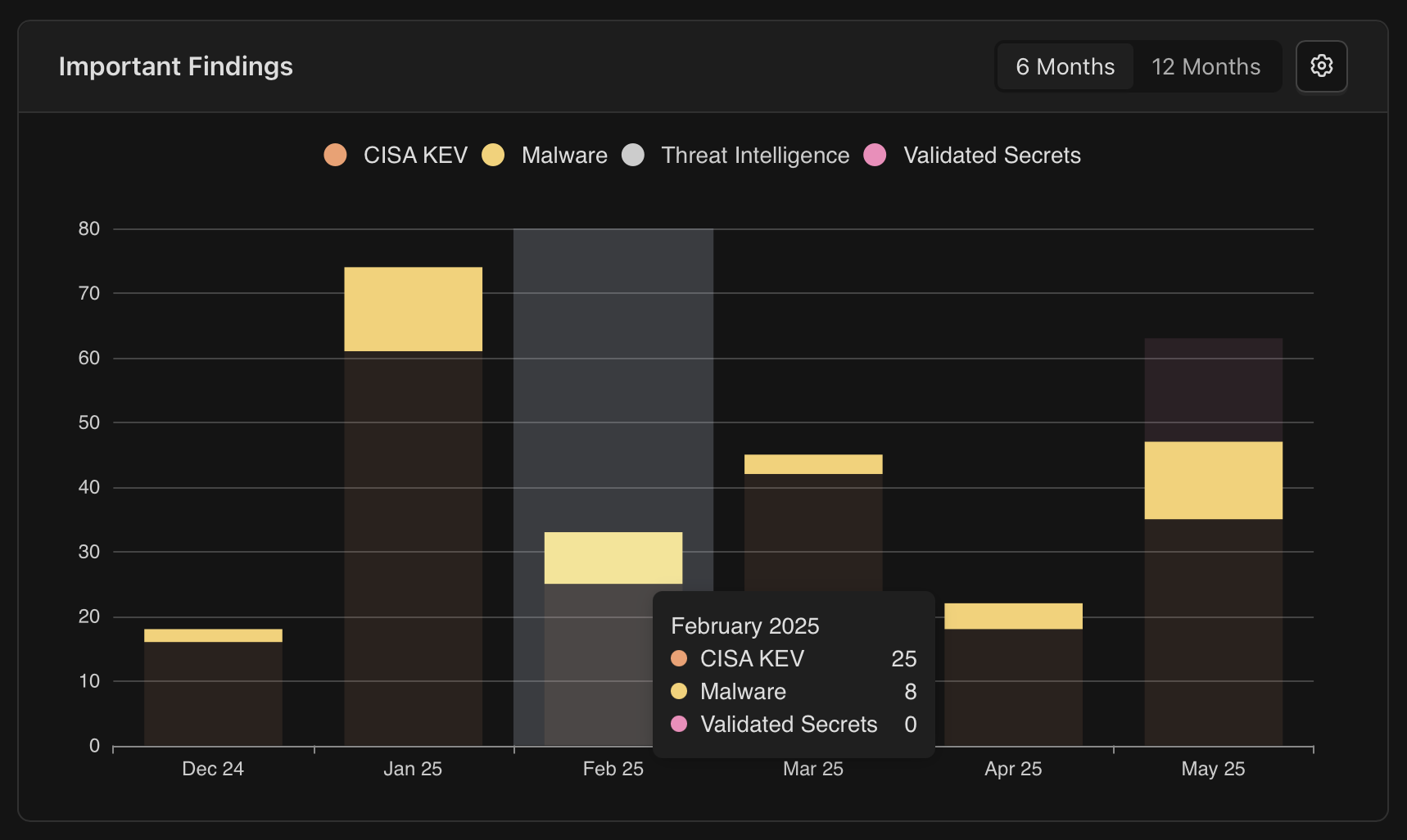
Go to the Global Findings grid or Product Image grid to get more detail on the findings- Selecting the view slice in the bar chart will open to the relevant Findings grid filtered to that view
Notes
- Custom views shown in the widget are specific to the category of Findings grid (Global, Product)
- The same finding may be found in multiple saved views depending on the filters selected