

What are Saved Views
-
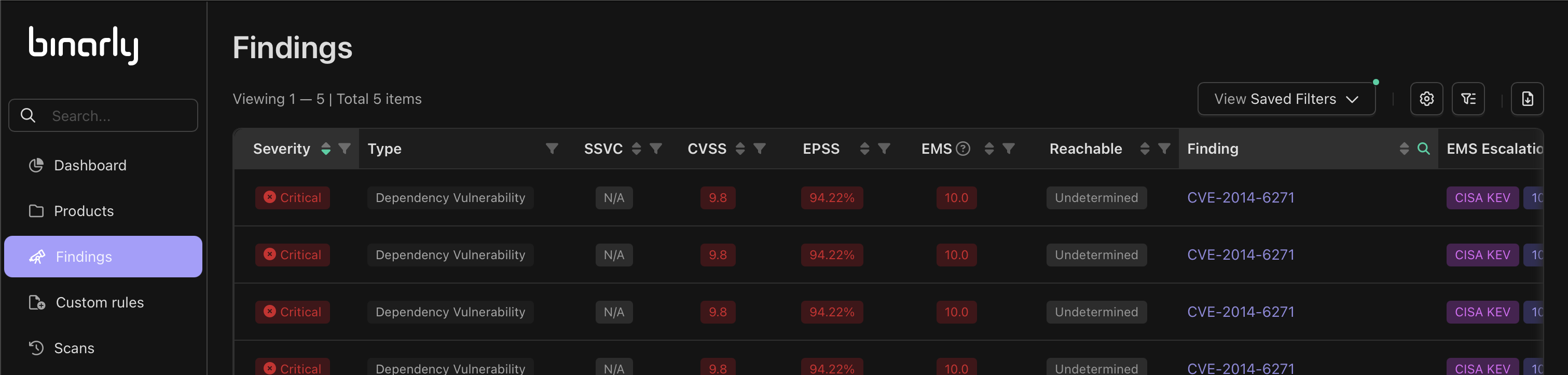
Saved views are a saved view of the Findings grid, so you can easily view findings that matter to you, they save:
- Any applied filters
- Any applied sorting
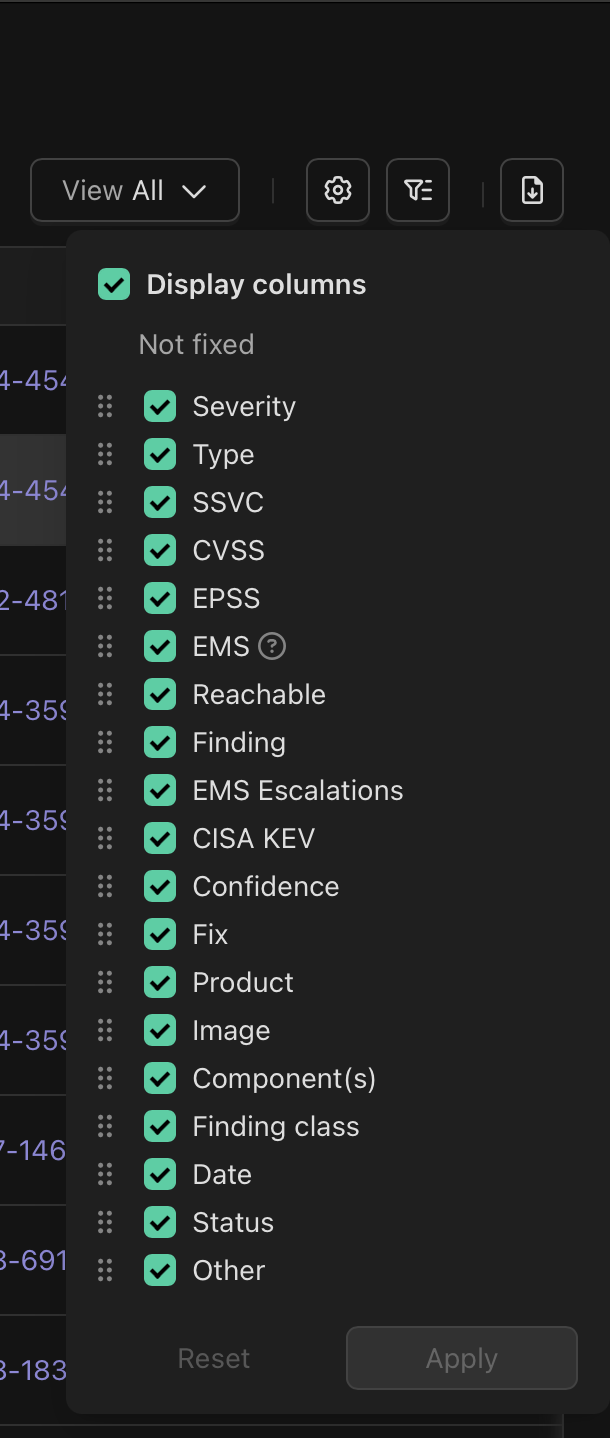
- Any column settings (column order, columns to display)
-
They are unique to each category of grid (Global, Product Image etc.):
- This means Custom Saved Views on the Global Findings grid are specific to the Global Findings
- Custom Saved Views on the Product Image Findings page are usable across all Product Images
System Views
Binarly offer 5 system views by default, the “All” view and 4 others which are considered “Important Findings” unless the user selects alternative views, these 4 other views are: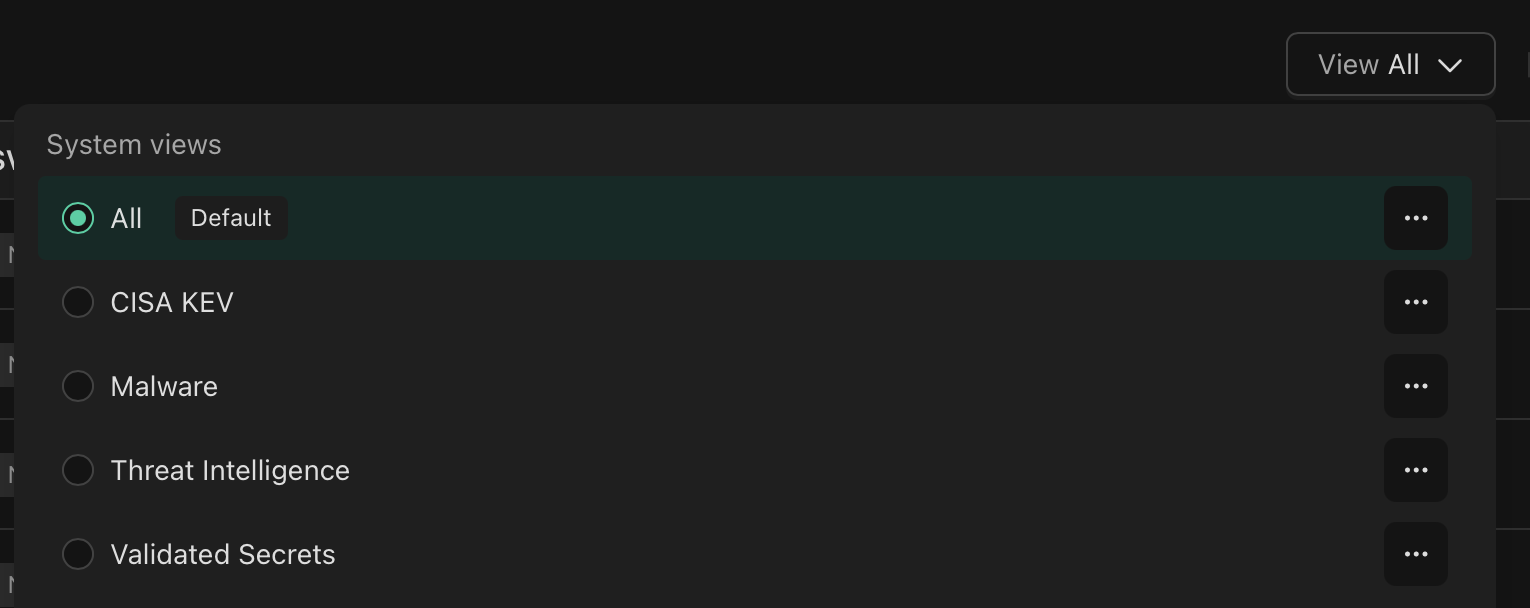
CISA KEV
This view shows any findings that are also on CISA’s Known Exploited Vulnerabilities list This view displays all columns, with the following filters and sorting applied:-
Filters
- Severity: Critical, High
- CISA KEV: Yes
- Type: All
- EPSS: Greater than 50%
-
Sorting
- Sorted by EMS descending first
- Sorted by EPSS descending second
Malware
This view details findings related to malware This view displays all columns, with the following filters and sorting applied:-
Filters
- Type: All
- Finding Class: contains “malware”
-
Sorting
- Sorted by Severity descending
Threat Intelligence
This view is a quick check against findings with escalations that could be considered severe This view displays all columns, with the following filters and sorting applied:-
Filters
- Severity: Critical, High, Unspecified
- Type: All
- EPSS: Greater than 50%
- EMS Escalations: All
-
Sorting
- Sorted by EMS descending first
- Sorted by EPSS descending second
Validated Secrets
This view displays secrets that have been confirmed active through external API validation. This view displays all columns, with the following filters and sorting applied:-
Filters
- Type: Secret
- Validity: Valid
-
Sorting
- Sorted by Severity descending
Custom Views
It is possible to setup custom views, which are the saved configuration of the grid including sorting, filters, and column settingsCustomising sorting
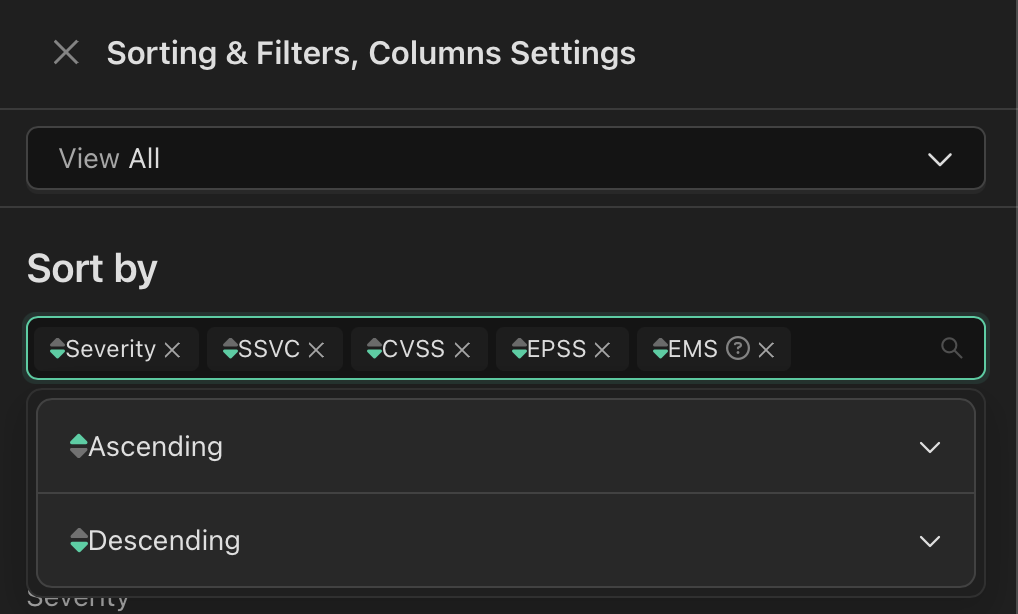
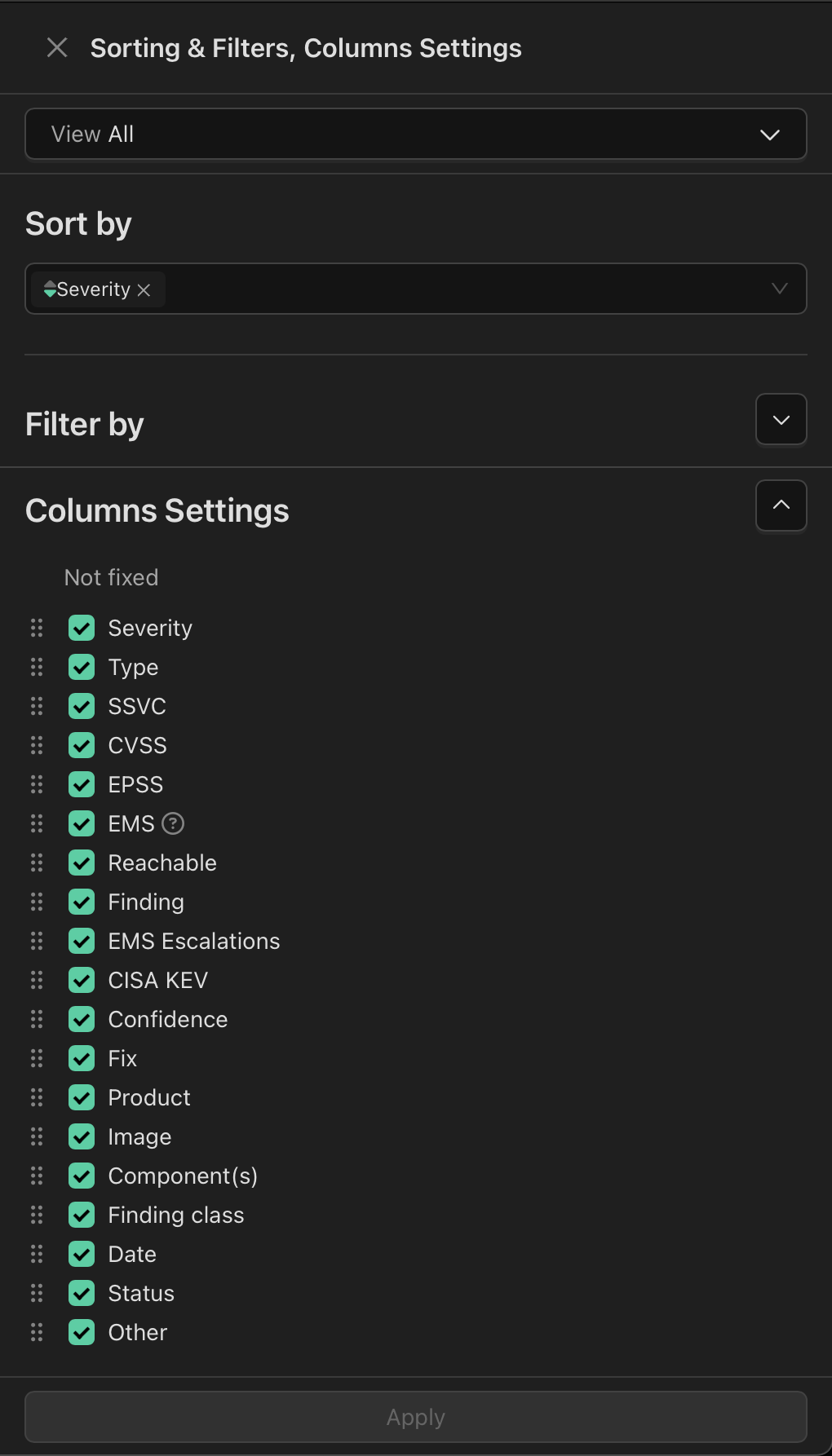
Setting sorting on the grid is done either directly against a column, or for more granular sorting can be done via the drawer. When sorting on a column directly, it is only possible to set sorting against a single column at a time.
Customising filters
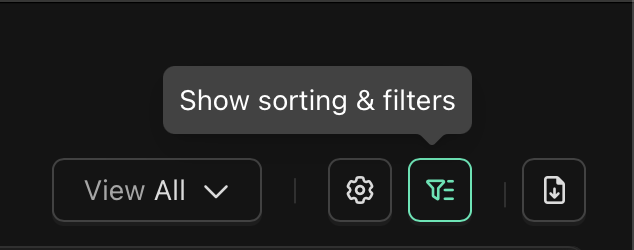
There are two ways to customise filters, either via the column headings, or via the drawer. You can set individual filters against the column headings which will be applied immediately.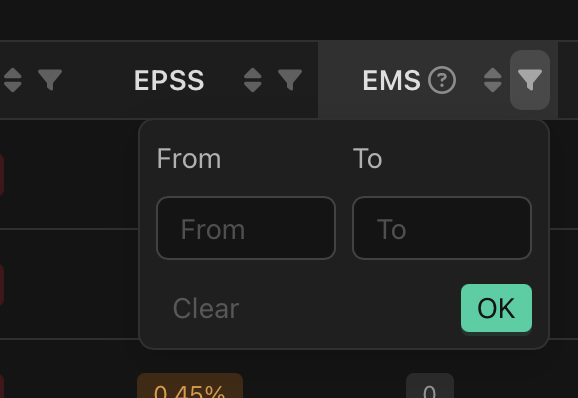
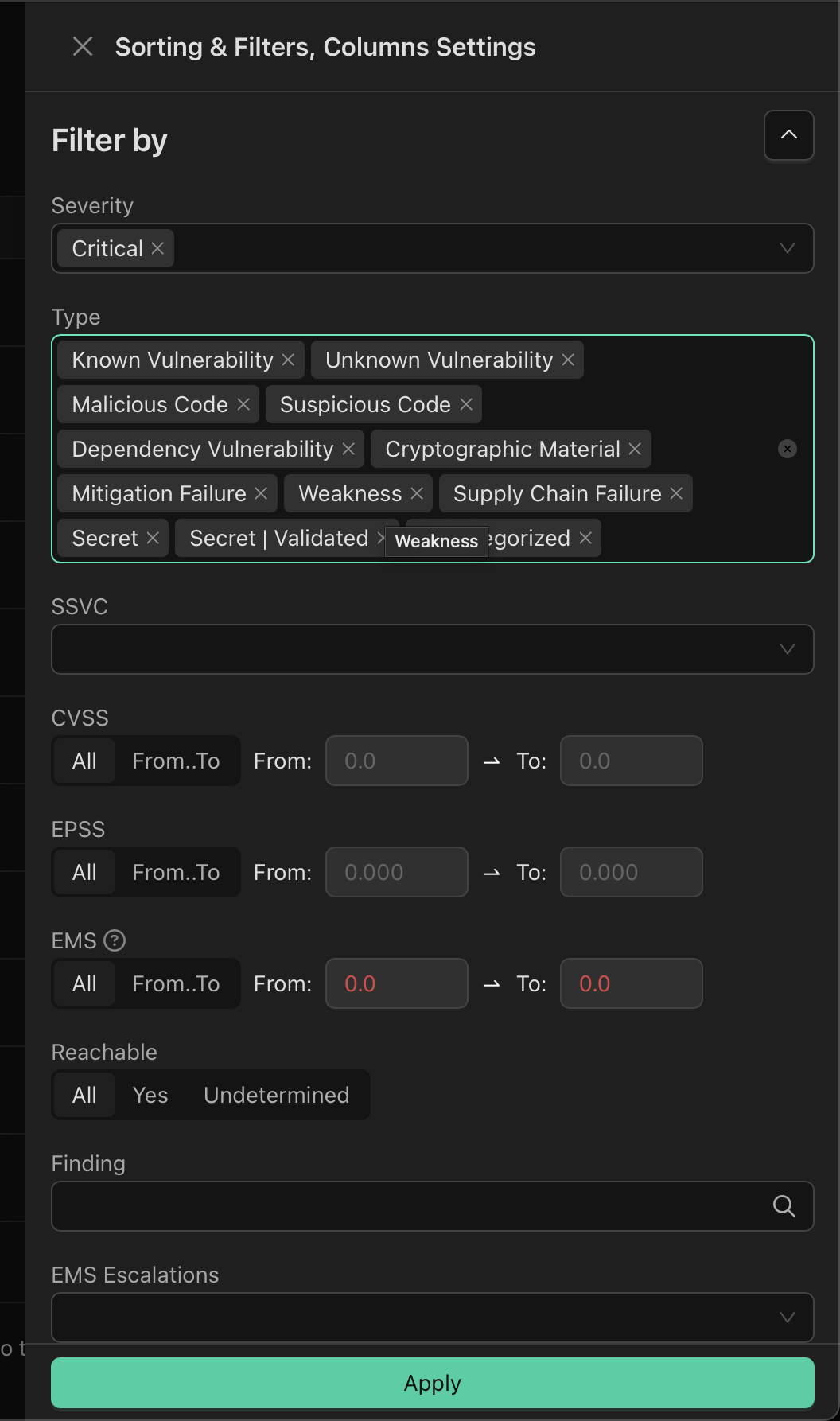
Customising columns
Columns can be customised via the popover when pressing the Gear icon, and quickly adjusted here, these changes only take effect upon pressing apply.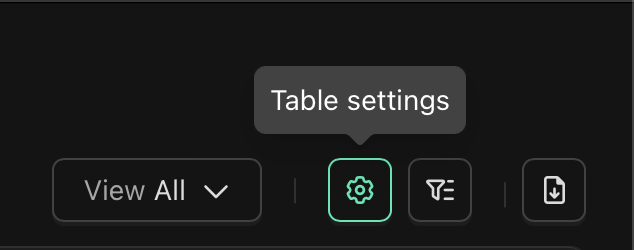
Saving custom views
There are two ways to save new custom views.- Duplicate: It is possible to duplicate any existing view, via the action menu against the View name. This allows you to save a copy of the view with a distinct name and description.
- Save as new: At the bottom of the Saved Views menu there is an always available “Save as new” which allows you to save the current view with a name and optional description.
- Updating an existing view: It is possible to update an existing view, rather than save it as new. An Update button will appear on an active view when changes are made that differ to its existing configuration.
- Pro tip: A small green dot appears on the Saved Views menu whenever you are viewing a grid that likely has changes not saved to an existing view.
Individual View actions
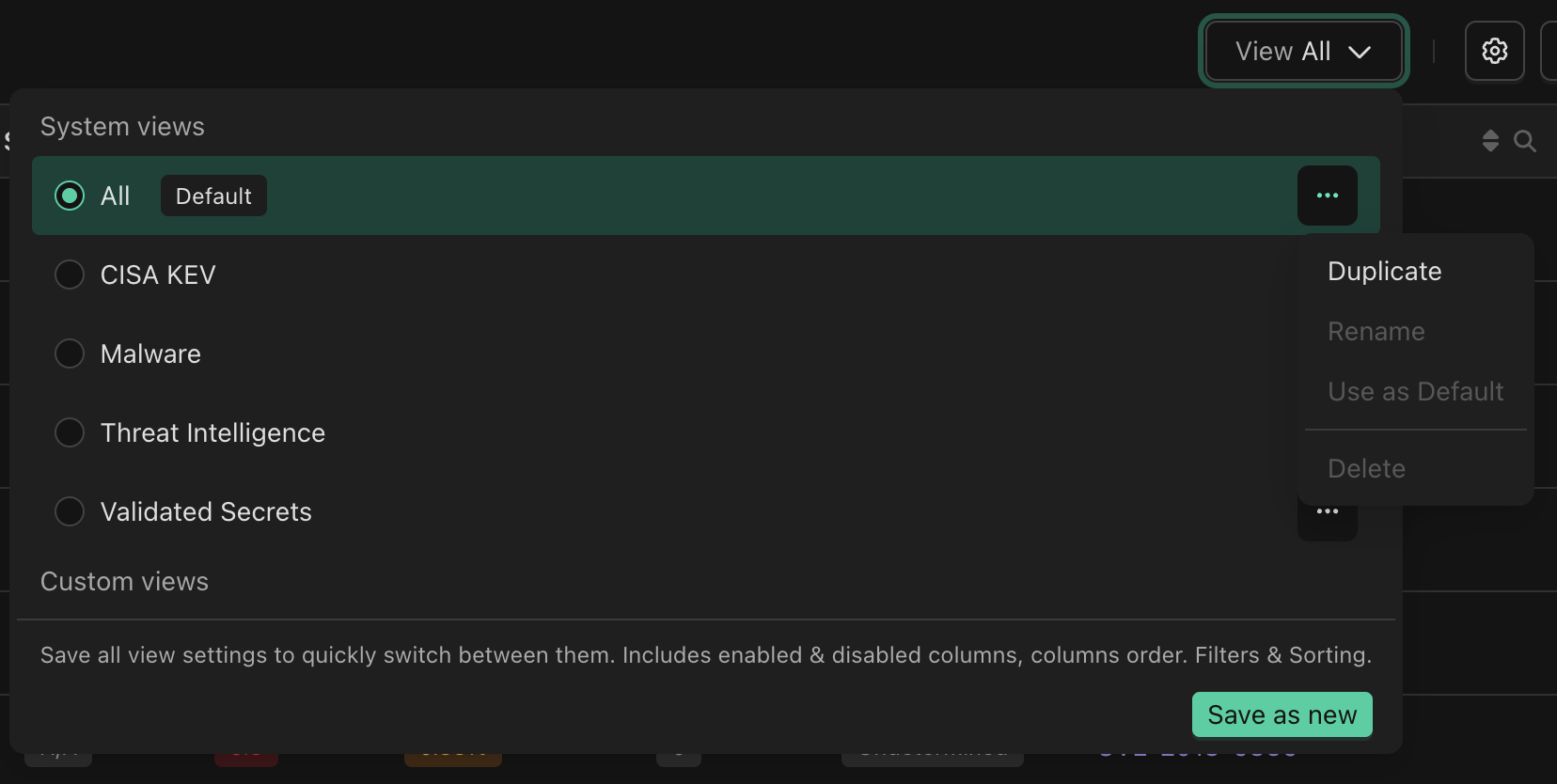
- Duplicate: As described above, allows the user to duplicate a view.
-
Rename (disabled for System Views): Opens the modal to update the existing view, it is possible to
- Update the name of the view
- Update the description of the view
- Choose whether this view should be set as the default (if you unset it as the default, the “All” view will automatically become the default)
- Use as Default: Sets the relevant view as the default view
- Delete (disabled for System Views): Opens modal to confirm deletion of the view
What is the Default View
If you have not setup, or actively changed the default view, then it is the “All” view. If you have chosen a default view, this view will be selected every time you visit the relevant Findings grid. There are some caveats to this:- Relevant view means a default in Global Findings will not be the default in Image findings, this is set separately
- The default will not be selected if coming from a link that intends to show you something else. For example, clicking a link from a widget on the dashboard may go to the Findings grid, but filtered to information relevant to the widget clicked
- If a view is not selected, this will be evident as the selected view is named in the Saved Views menu