

Prerequisites
- A completed image scan with findings.
- Access to the Findings grid for the image or product.
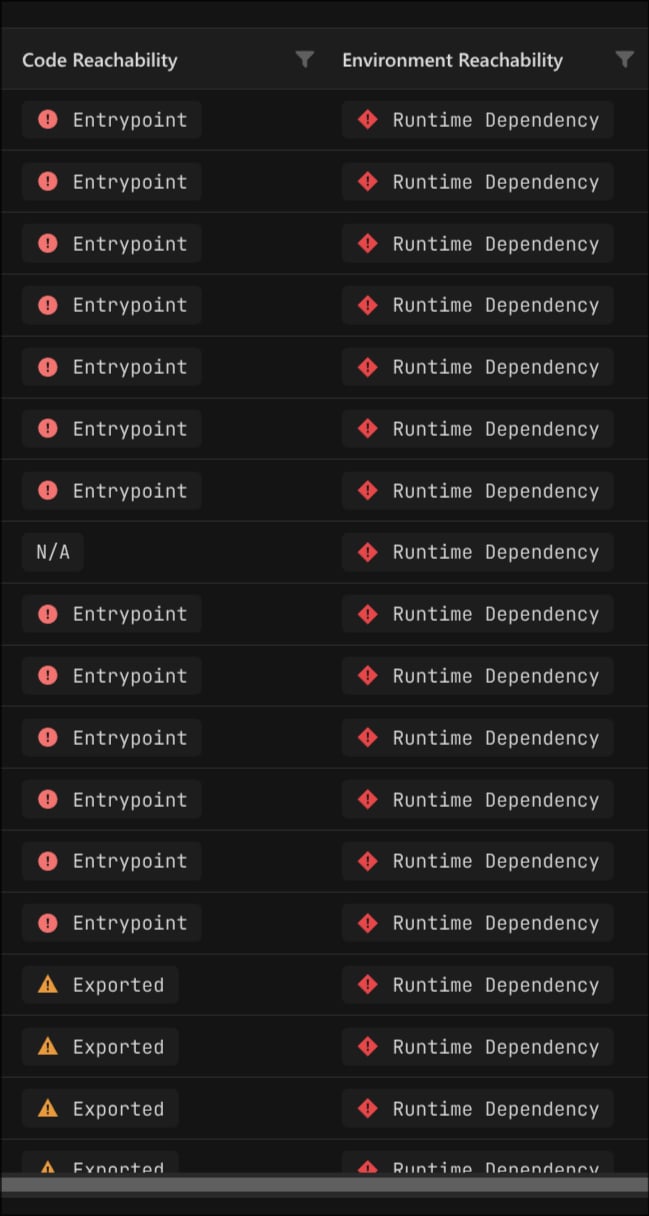
The two reachability columns
Each column answers a different question. Environment Reachability asks whether the component runs at all in the package. Code Reachability asks whether, once it runs, execution can reach the vulnerable code. Neither answer alone confirms that the vulnerable code runs; together, they’re the clearest static evidence available.Code Reachability
Whether the vulnerable code is reachable from an entry-point inside the component that contains it.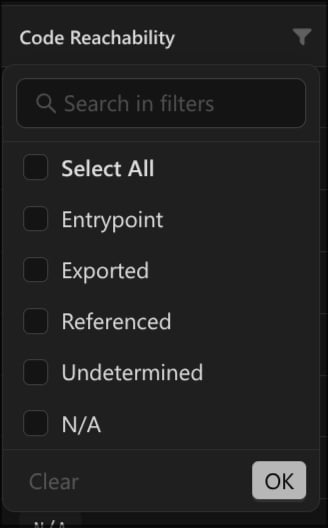
Environment Reachability
Whether the component runs or loads in the package’s assumed runtime environment.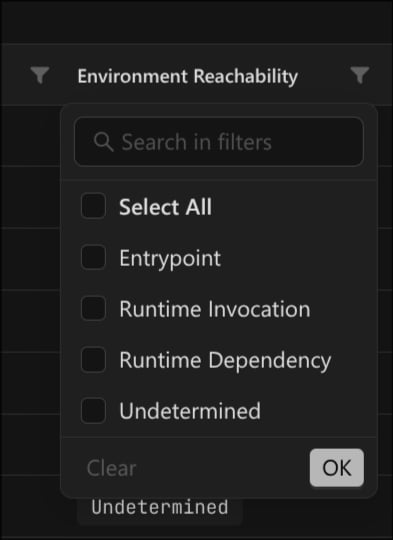
How reachability differs by ecosystem
The same column value is derived differently depending on the package. Code Reachability depends on what counts as an entry-point inside a binary, and Environment Reachability depends on how the package declares what runs. The Ecosystem column is the kind of package you uploaded; the Environment class is the label ASAP assigns once it identifies that package. Use this table to read the columns in the right context. See Reachability analysis (ASAP) for the full model.
Reading this in practice, take each column in turn:
- Code Reachability reads the same on containers and Linux images, because both hold ELF binaries:
mainorstartgives Entrypoint, and shared-library exports give Exported. UEFI has nomain-style entry, so its reachable code is almost always Exported, entered through protocol interfaces, PPIs, registered event handlers, and SMI handlers. - Environment Reachability starts from how each package declares what runs: containers from the OCI config, Linux images from start-up scripts, UEFI from the modules in the firmware image. Across all three, a component that runs shows Entrypoint, one component invoking another shows Runtime Invocation, and a loaded but possibly unused dependency shows Runtime Dependency. Runtime Dependency comes from dynamic linking, so it appears on containers and Linux, and rarely on UEFI, where modules interact through protocols and PPIs and show Runtime Invocation instead.
On UEFI findings, Exported is the strong Code Reachability signal, not a weaker one. Do not deprioritise a UEFI finding only because it is not marked Entrypoint. A module’s reachable code is entered through its protocol interfaces, PPIs, event handlers, and SMI handlers, which the platform classifies as Exported.
Reading the two columns together
Environment Reachability places the component on the attack surface. Code Reachability confirms the vulnerable path inside it. A finding is most likely to be executed when both signals are strong. This pairing holds for every ecosystem, but which values you actually see depends on it: on UEFI, the strong Code Reachability signal is Exported rather than Entrypoint, as covered in How reachability differs by ecosystem. Read the pair against this table:Filter the grid by reachability
Each column has its own filter in the grid header.1
Open a column filter
Click the funnel icon in the Code Reachability or Environment Reachability column header.
2
Select the values to keep
Tick the values you want to see. Use Search in filters to find a value, or Select All to start from everything. A finding matches when its value is in your selection.
3
Apply
Click OK to apply, or Clear to reset the column. The grid updates and writes the filter state to the page URL, so you can bookmark or share it.
4
Combine both columns
Filter Environment Reachability and Code Reachability together to scope to findings that both run and are reachable in-binary.
Example: reachable, open known vulnerabilities
Build a triage view for known vulnerabilities that are most likely executed and still open:- Type is Known Vulnerability.
- Environment Reachability is Entrypoint or Runtime Invocation.
- Code Reachability is Entrypoint or Exported.
- Status is New or In Progress, with Ignored off.
On the finding detail
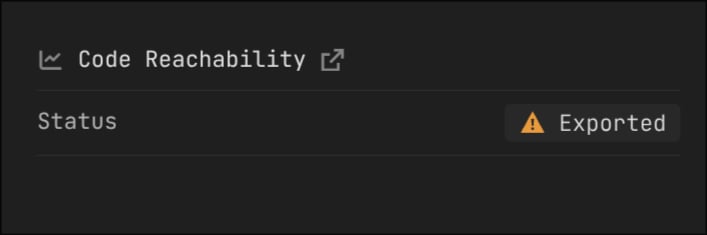
Open a finding to see both signals in full.- Code Reachability shows the Status and links to the reachability trace evidence.
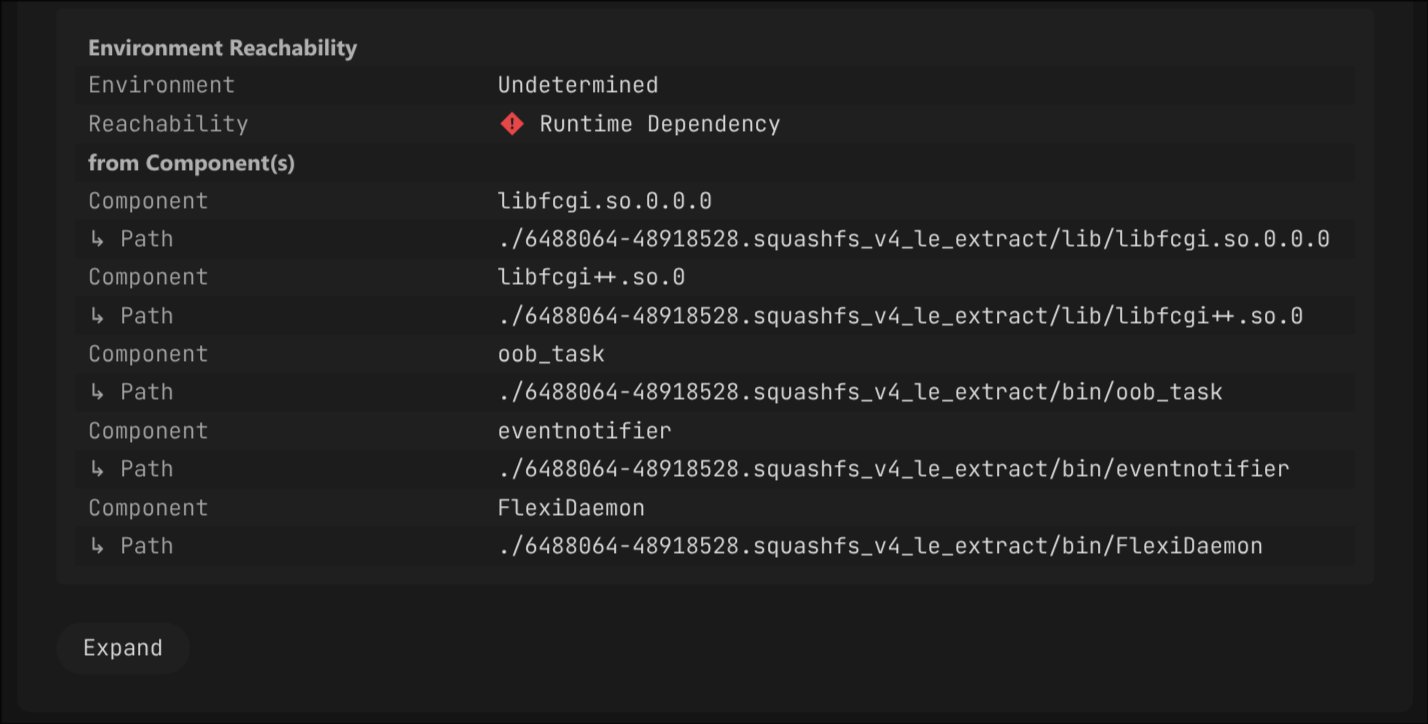
- Environment Reachability shows the Environment it was derived from, the Reachability kind, and the components the reachability comes from under from Component(s), each with its path.
2 ER, and the detail lists each source under from Component(s). Check each component listed there to see whether it calls the vulnerable function.
Save and share the view
Once the filters and sorting are set, keep the view for reuse:- Save the filter, sort, and column settings as a Saved View. Saved Views are scoped to the grid category (Global, Product Image, and so on).
- Copy the page URL to hand a teammate the same view. The grid encodes filters, sorting, and page state in the URL.
Related
Reachability analysis (ASAP)
How Binarly computes the Code and Environment Reachability behind these filters.
Saved Views
Save and reuse filtered, sorted grid views.
Finding details
Where reachability appears on an individual finding.
CVSS vector filtering
Filter findings by CVSS vector components.